HawkSoft Browser App
You can access the HawkSoft Browser App from anywhere, using any web-capable device, such as tablets and mobile phones, without installing HawkSoft Desktop!
The HawkSoft Browser App is used for administrative settings, reporting, managing downloads, and can also be used to access the Client View, Task Center, Trust Accounting, and the Commissions Center. The browser app does not include direct access to editing client or policy information, but does include viewing client and policy data, inserting logs and attachments, and managing Tasks.
The browser app gives you the flexibility to access agency data when and where you need it. If you currently only have internet access on a mobile device, or you need to adjust a user's permissions or add a carrier while away from your office, the HawkSoft Browser App will provide access to agency data via a mobile device or from another workstation.
For viewing client and policies on a mobile device, HawkSoft recommends using Agent Portal.
 To log in to HawkSoft Browser App
-
Open the HawkSoft Browser App from your browser (https://hawksoft.app).
You may want to bookmark this site in your device's web browser for easy access.
-
Enter your User Initials and Agency ID using the format <User Initials>@<Agency ID>.
For example, Allen Charleston, with user initials ABC, at agency 12345 would enter ABC@12345.
-
Enter your password, then click Sign In.
-
Conditional: The first time you log in as a new user, HawkSoft will email you a verification code to verify your email account.
Copy the code into the space provided, then click Submit.
-
Conditional: If your agency has enabled MFA, HawkSoft may email you an authentication code.
Copy this code into the space provided, then click Submit.
Multi-Factor Authentication provides an additional level of security. To enable or disable MFA for your agency, see
The HawkSoft Browser App opens to the Start page in your browser.
-
Conditional: If your agency has multiple offices, you may need to select an office.
HawkSoft Browser App opens to the Start page in your browser.
To log out of HawkSoft Browser App
Click on your initials in the upper right, then select Sign Out.
To reset a forgotten password in your browser
Once you have associated your email address with HawkSoft, you can reset a forgotten password on your own from the HawkSoft login window.
-
Open the HawkSoft Browser App login page in your browser (https://hawksoft.app).
-
Click Forgot Password?
-
Enter your User Initials and Agency ID using the format <User Initials>@<Agency ID>.
For example, Allen Charleston, with user initials ABC, at agency 12345 would enter ABC@12345.
-
Click Request Temporary Password.
HawkSoft will email you a temporary password.
-
Enter your User Initials and Agency ID using the format <User Initials>@<Agency ID>.
-
Copy the temporary password from your email into the Password field.
-
Click Sign In.
-
Conditional: If your agency has enabled MFA, HawkSoft may email you an authentication code.
Copy this code into the space provided, then click Submit.
-
Create a new password, using the Password Rules provided.
-
Enter your new password into both fields, then click Update Password.
HawkSoft Browser App opens to the Start page.
Multi-Factor Authentication provides an additional level of security. To enable or disable MFA for your agency, see
Navigating the HawkSoft Browser App
You can  Expand or
  Collapse the navigation menu on the left side of the page.
Hover over any of the menu icons for more information.
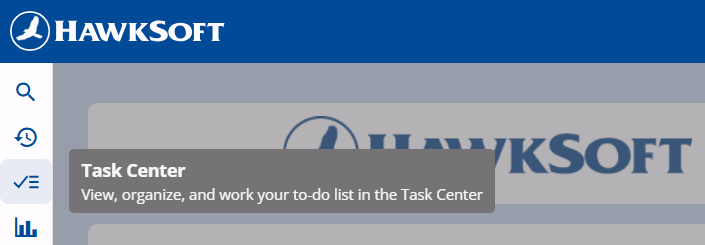
You can access the following features in the left-hand menu:
-
 Recent Clients
  Task Center
-
 Launch HawkSoft Desktop App (if installed on this computer)
 -
 Settings
Some settings can only be changed using HawkSoft Desktop. See Feature Availability for more information.

 Reporting
 Carrier Downloads Dashboard
 Trust Accounting
 Commission Center
Searching for Clients
Click the  Search button in the left-side menu to search for clients using Client Search, the same search dialog as HawkSoft Desktop.
You can bookmark clients in your browser for quick access, as you would for any other website. In most browsers, you can do this by clicking the star icon at the end of the address bar or by pressing Ctrl+D on your keyboard.
In the HawkSoft Browser App the Client Search can be closed using the Close button at the bottom of the dialog, rather than an X in the upper right as in HawkSoft Desktop.
Recent Clients
The ten clients you have accessed most recently are listed under  Recent Clients in the side menu. If the menu is expanded, each client will be listed under the icon. If the menu is collapsed, you can hover over the icon to show recent clients in a tooltip. Click on a recent client to launch them, which will open the client in a new browser tab.
Viewing and working with clients and policies
The client and policy view screens in the HawkSoft Browser App look almost exactly like the screens you see in HawkSoft Desktop, with a few important differences.
-
First, the HawkSoft Browser App navigation bar remains present on the left side of the screen.
-
Second, the Action Menu and other toolbar buttons present in Desktop are not available in HawkSoft Browser App.
Because the action menu and some desktop-specific dialogs are not available in HawkSoft Browser App, you can not add or edit clients or policies, send emails from attachments, or check out working documents. However, you can add log notes, attachments, and tasks as you would in HawkSoft Desktop.
See Log Notes Overview for information about log notes, Attachments Overview for information about attachments, and Tasks Overview to learn more about Tasks. See Feature Availability for more information on features accessible from HawkSoft Desktop versus the Browser App.
Required Permissions
Accessing the HawkSoft Browser App honors each user's permissions as set in their user profile.
For example if a user has permissions to run reports, they will be able to run reports when accessing HawkSoft Browser App.
See User Permissions for more information.