Viewing & Sending Text Messages
HawkSoft makes it easy to view client text messages and send replies from a variety of locations within HawkSoft. Available views and options depend on your texting permissions.
This topic is applicable to the built-in HawkSoft Text Messaging feature. See HawkSoft Text Messaging Overview to learn how to register and configure this feature. This article explains how to access and view text messages, how to send a text message, how to watch a text message conversation, and how to archive phone numbers and profiles in HawkSoft.
Attachment limitations
HawkSoft Text Messaging does not support sending any attachments, with one exception:
Auto ID Cards can be sent via text, but this requires a distinct workflow from standard text messaging. See Auto ID Card for more information.
No other attachments can be sent via text, however most attachment types can be received by your agency via HawkSoft Text Messaging.
As an alternative to using the built-in HawkSoft Text Messaging feature, your agency can subscribe to an email-to-text messaging service provider and send text messages directly from a client. This feature enables you to use your existing mobile number.
See Text Messaging (Email-to-SMS) Overview for more information.
Once your administrator purchases and configures HawkSoft Texting, the text messaging setting in User Preferences is automatically set to HawkSoft Text Messaging for all users. If your agency previously used a different text messaging integration (such as Bulk SMS or Message Media), you may cancel the messaging service if it is no longer needed.
 To view a text message
There are several options within HawkSoft where you can view and reply to texts.
|
|
Accessibility & Contents |
| Client Texts
|
Accessible from the toolbar while viewing the client. Clicking on a popup text notification will also bring you to the Client Texts view if you are on that client. Displays the texts for a specific client. You can also initiate the opt-in process from this screen. If you have permissions to access the client, you can view the entire text history from this window, even if you do not have permissions to send text messages. |
| My Texts
|
Accessible from the Quick Links panel in HawkSoft. Displays all conversations that have unprocessed text messages on any client which has you listed as a CSR or Producer, or for clients you choose to follow. |
| Unmatched Texts |
Accessible from the Quick Links panel in HawkSoft. Displays all text messages received from phone numbers not found within HawkSoft. See Unmatched Texts for more information. |
| All Unprocessed Texts |
Accessible from the Quick Links panel in HawkSoft by Texting Administrators only. Displays all conversations for your agency that are not yet marked as processed. See Processing Text Messages for more information. |

 Client Texts
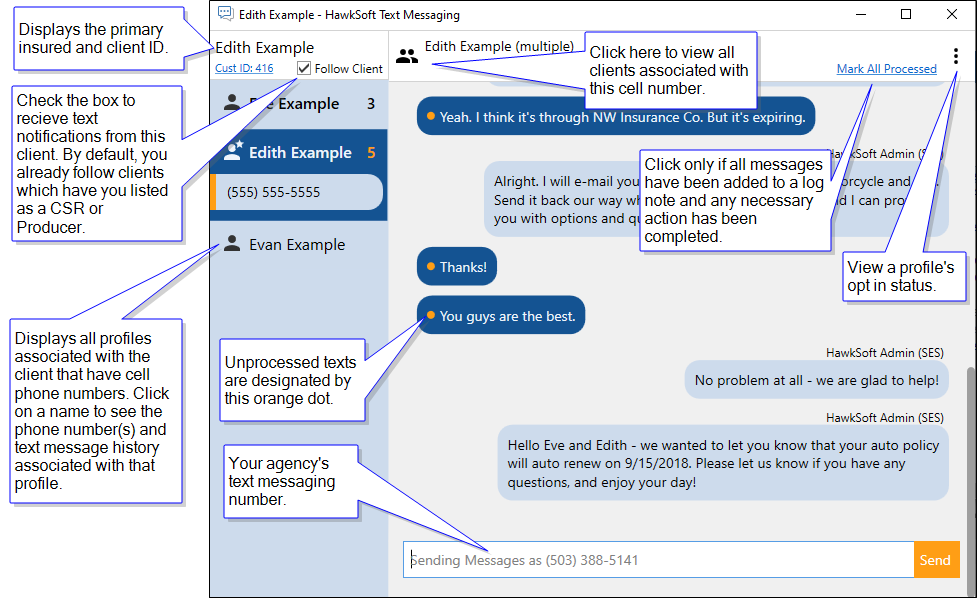
The Client Texts view displays the full text message history for each profile associated with the selected client. You can also initiate the opt-in process from this screen.
Any user with access to a client can view the text message history.
My Texts
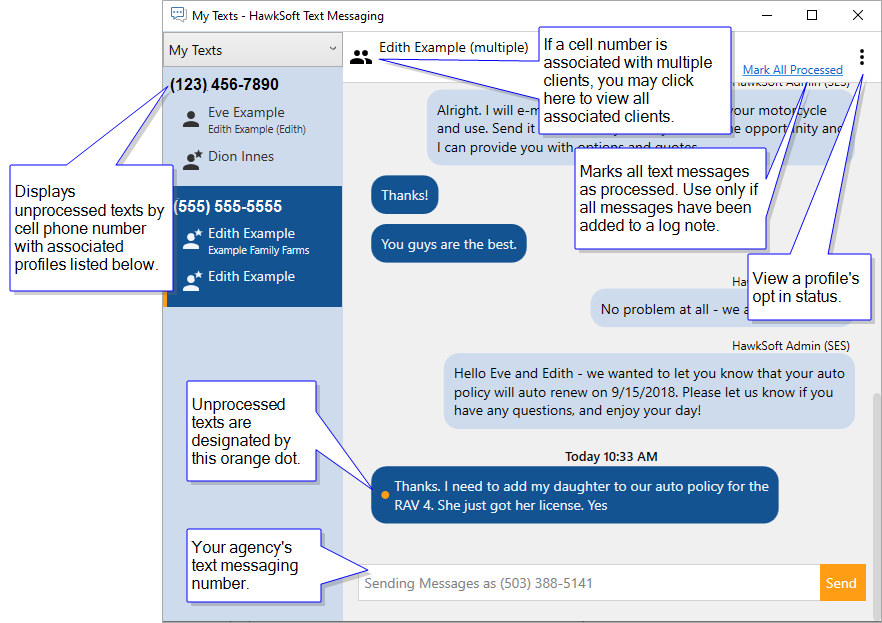
The My Texts displays all unprocessed text messages for clients which have you listed as a CSR or Producer, as well as all clients you have chosen to follow.
Unmatched Texts
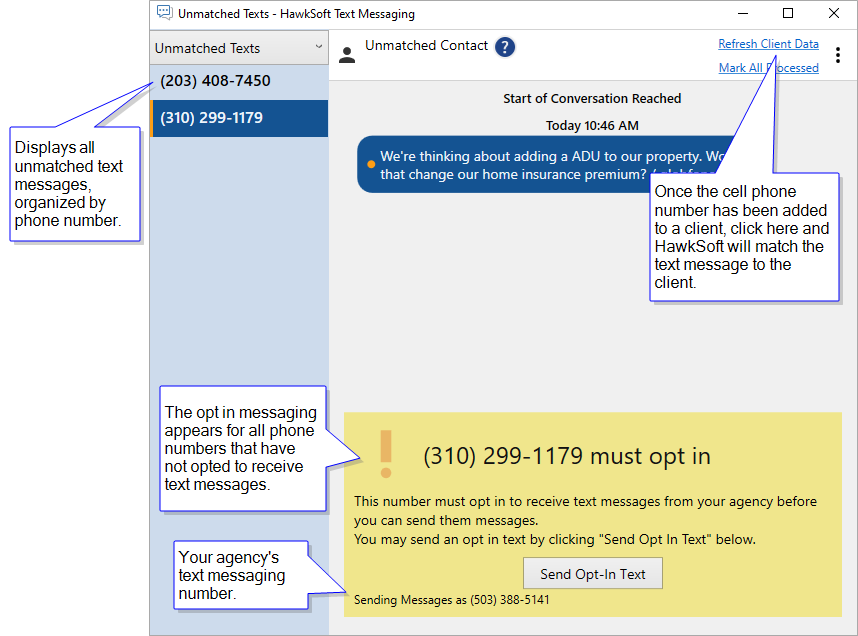
The Unmatched Texts view displays text messages from phone numbers not currently associated with a client.
Once you have added the cell phone number to a new or existing client, return to the unmatched text message for the client and click Refresh Client Data.
See Unmatched Texts for more information.
All Unprocessed Texts
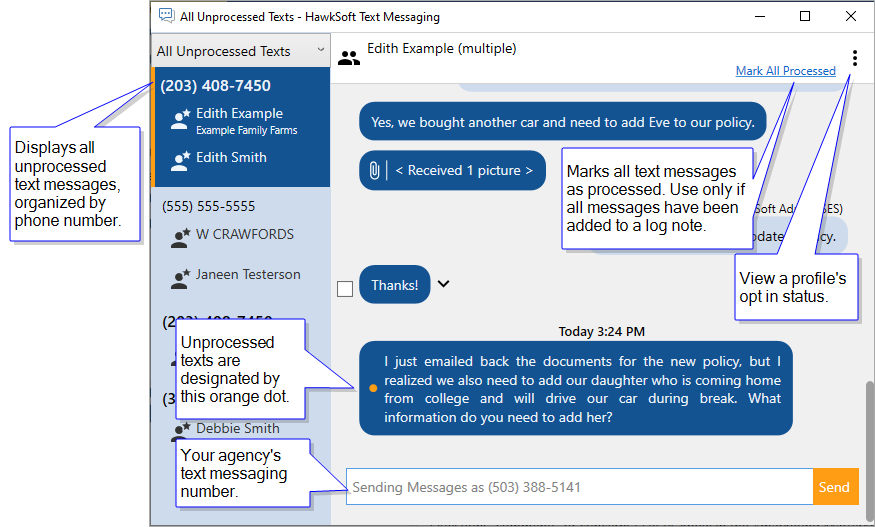
The All Unprocessed Texts displays all unprocessed text messages across all of HawkSoft, organized by phone number, regardless of user permissions to view clients.
Text message information
Hover your mouse near a text message in the HawkSoft Text Messaging dialog and click the  down arrow icon to view more information about a text message, including the client(s) name the phone number is matched to, date and time the message was received, and whether or not the message has been processed. If the text message contains an image, additional options for processing the image are available.
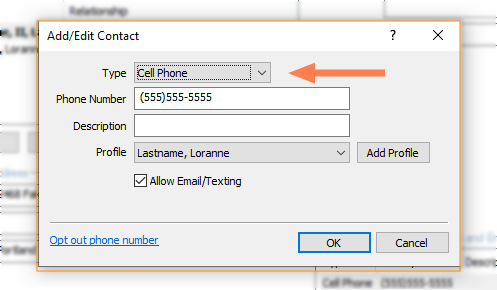
Be sure to select Cell Phone from the Type drop-down when entering a cell phone number on the Contact Information for your clients. Other phone types will not appear as options for text messaging.
To send a text message
We recommend the following workflow for texting to simplify processing and minimize E&O exposure:
To learn how to text an ID Card to the Insured, see Auto ID Card or State Specific ID Cards.
-
Retrieve the client, and then select the policy if needed.
You will be able to insert data from the selected client or policy when composing the text message.
- Click Action and then select Text > To > Insured.
- Select Send Text Message.
-
Select the recipient(s) from the Text Message Recipients dialog, and then click Send Text.
OR
If the client has not yet opted-in to receive text messages, send an opt-in request before contacting the client via text message.
You must send an opt-in request before texting each client. The FCC requires all clients to opt in before receiving text messages from your agency.
To send the initial opt-in message
- Select one or more phone numbers by checking the box next to the number, and then click Send Opt In. The opt-in status for each phone number will change to Pending.
- Click Finish on the Text Message Recipients dialog.
- Click Finish on the Action menu.
HawkSoft creates a log note to document the opt-in request.
It is also possible to send an opt-in request while viewing texts. See Text Messaging Opt-In Compliance for more information.
- Select one or more phone numbers by checking the box next to the number, and then click Send Opt In. The opt-in status for each phone number will change to Pending.
-
Select a template to begin the conversation or select No Template, and click OK.
When using a template that contains policy level merge fields such as the Company Name or Policy Number, be sure to select a policy. See Text Message Templates for information on setting up a template.
-
Compose your message, and then click Send.
Attachment limitations
HawkSoft Text Messaging does not support sending any attachments, with one exception:
Auto ID Cards can be sent via text, but this requires a distinct workflow from standard text messaging. See Auto ID Card for more information.
No other attachments can be sent via text, however most attachment types can be received by your agency via HawkSoft Text Messaging.We suggest keeping text messages under 160 characters to prevent the message from being divided into multiple texts, which can cause confusion.
-
Optional: Click Insert Field to include information from the selected client or policy.
-
Click Finish on the Action menu.
The Finalize Log dialog opens.
-
Add log comments and create a Task as needed, and then click Save Log.
Your text message is documented in the log note.
Moving forward, you can copy and paste the entire conversation in an appended log note.
Once you have finished exchanging text messages with the client for one conversation, you can copy and paste the remaining text messages into an appended log note.
- Hover your mouse to the left of the first text in the conversation, and then select the box that appears.
- Select the box next to the last text in the conversation.
Click Copy Text to Clipboard at the top of the Texting window.
A message appears confirming that all texts between your two selections will be copied.
Click OK.

For E&O purposes, HawkSoft will not allow you to skip messages between the beginning and end of your selection.
- To copy a conversation, select the first and last message, and then click Copy Text to Clipboard.
- To copy only one text, rather than a conversation, simply select one check box.
- Return to the client and click on the original log note, and then select Append To Log.
Press Ctrl-V on your keyboard to paste the text conversation into the log note or right-click and select Paste.
Click Append Log to save the text message conversation to the log note.
See Processing Text Messages and Append new information to an existing log note for more information.
To watch a conversation
When you are actively texting with a client, you will likely keep the client texting window open. When this occurs, HawkSoft considers you to be "watching" the conversation and will mute notifications for other users following the client. This prevents fellow users from receiving a rapid secession of notifications as the client replies to you, and prevents other users from replying to the client at the same time.
However, if another user opens the Client Texting view for that client, they will receive notifications.
Be sure to close the Client Texting view when you are ready for other users to receive notifications of the client's replies.
Archived phone numbers and profiles
If you remove a phone number or archive a profile from the client, the text messaging history for the number will continue to display within the Client Texts view with a note that "This profile is archived." Users will not be able to send text messages to the phone number from that client.
New messages from the number will not display - they will be sent to the Unmatched Texts view or to any other client the number is associated with.
Related Topics