Enable Carrier Downloads for your Agency
HawkSoft can be configured to accept electronic downloads from participating carriers. HawkSoft attaches downloads received from these carriers to existing clients and policies and can automatically update policy information according to your Download Rules.
Visit carriers.hawksoft.com to see which carriers are certified for downloads with HawkSoft, as well as the method the carrier uses to send downloads, and how to request downloads from a particular carrier.
The first step to download setup in HawkSoft is to turn on carrier downloads from your Download Rules. Once carrier downloads is enabled, you can begin configuring HawkSoft to receive and automatically process downloads from your carriers.
This article covers how to turn on carrier downloads in HawkSoft, and provides a brief overview of the next steps to configuring your HawkSoft database to receive and process downloads.
HawkSoft automatically processes your agency's IVANS downloads and either adds them to a matched client/policy as an attachment or adds them to your agency's Unmatched Downloads. If any of your carriers require the use of a third-party downloader other than IVANS, HawkSoft can also integrate with them by automatically importing those downloads each time the third-party downloader is run by your agency. You can review recently matched downloads on the Download Report. Additionally, you can manually process downloads from other sources (such as email) by dragging-and-dropping them on the policy.
 Required Permissions
In order to complete this task, user permissions must be set to include:
Downloads > Downloads Dashboard and Report > Download Configuration and Tasks
See User Permissions for more information.
To enable carrier downloads
-
Open the Downloads Dashboard using one of the following two methods:
Through the HawkSoft Desktop app:
Click Activities from the top menu bar, and then select Downloads Dashboard.
Through HawkSoft on the Web:
Click the
 Carrier Download Dashboard icon from the left side-panel.
Your Carrier Downloads Dashboard opens in a new browser tab.
The Downloads Dashboard is the central hub for carrier downloads in HawkSoft, and enables you to monitor and configure your carrier downloads, as well as manually match any carrier downloads HawkSoft was unable to match automatically. See Downloads Dashboard for more information.
-
Click Configure at the top-right of the Downloads Dashboard.
The Configuration page of the Downloads Dashboard opens to the Download Rules tab.
-
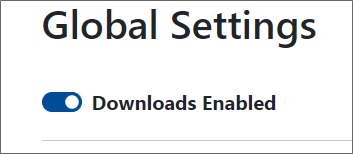
Click the "Downloads Enabled" check-box.
-
Optional: If you only want to receive downloads during a specific time period each day, select Limit Ivans to the following hours, and use the From and To fields to set a start time and end time for when your agency will receive daily Ivans downloads.
-
Carrier Downloads are now enabled for your agency. However, additional setup is needed before your agency can begin receiving and processing carrier downloads.
The next steps to carrier download setup
This section gives a brief overview of the next steps to setting up carrier downloads in HawkSoft, in the order the steps should be completed.
-
Download Accounts Configuration (Ivans)
Most carrier downloads are sent using the Ivans® Insurance platform. Your Ivans account functions as a mailbox for carrier downloads: Carriers send downloads to your Ivans mailbox (sometimes called a "Y-account"), and then HawkSoft pulls in your received downloads from your Ivans mailbox and processes them.
If you do not have an Ivans account and would like to begin receiving carrier downloads, your HawkSoft Implementation specialist can assist you in obtaining an account.
To integrate your Ivans account(s) with HawkSoft, enter your Ivans account information into the Download Accounts tab of HawkSoft's Download Configuration page.
Once HawkSoft is connected to your Ivans account(s), HawkSoft will automatically and continuously process carrier downloads sent to your Ivans mailbox, with no manual input needed.
See the Download Accounts Configuration article for full steps on integrating your Ivans account(s) with HawkSoft.
-
(If needed:) Configure third-party downloads
Some carriers, such as Progressive®, use their own software to send policy transaction downloads to HawkSoft. Additionally, some carriers may use one of several other third-party vendors, such as TEAM-UP® or Symbience Clear Path® to send downloads.
To receive downloads from carriers using third-party or proprietary download software, you will need to download the carrier or vendor's software to a computer in the agency, and assign an employee in your agency to run this software each business day to receive the carrier's downloads.
Contact the carrier or vendor associated with your download software to install, configure, and obtain instructions for running the software.
Once you have installed and configured the download software, you can configure HawkSoft to pull in downloads from the folder in your computer's files that the software sends policy download files to.
After initial set-up, no action is needed in HawkSoft to receive third-party downloads: HawkSoft will automatically and continuously pull in and process downloads from the third-party downloader each time the designated agency employee runs the third-party download software.
See the Configure Local and Third-Party Downloads article for full steps and information on setting up HawkSoft to receive third-party downloads.
-
Once you have configured HawkSoft to receive downloads from carriers, configure your Download Rules to determine how these carrier downloads should be processed.
For example, you can configure HawkSoft to automatically add new carriers to your carrier list if a download is received from a carrier that doesn't exist in your agency's Carrier Setup.
Carriers automatically added to your carrier list will contain only basic name, writing carrier and NAIC code information. These automatically-added carriers will be marked with a
 chip in Carrier Setup, indicating that this carrier needs to be manually reviewed and completed at a later date.
As another example, you can configure HawkSoft to automatically update policies when certain types of downloads are received (such as Cancellations, Renewals, etc.) unless they come from certain carriers, in which case a user will need to manually update the policy when a download from those excluded carriers is received.
If needed, you can also configure HawkSoft to use separate Download Rules depending on whether the download is for a personal policy or a commercial policy. The ability to exclude carriers from certain Download Rules can also be combined with the ability to use separate rules for personal and commercial downloads.
For more information on configuring Download Rules and each of the Download Rules available to the agency, see Download Rules.
-
Configure automated Download Tasks
Tasks are reminders to complete or follow-up on an action for a client and policy. For more information on Tasks in general, see Tasks Overview.
HawkSoft enables you to create rules within your Downloads Dashboard that define when a Task should be created, and to whom the Task should be assigned to, upon receiving a carrier download. When downloads are received by HawkSoft, the downloads are checked against these Task Rules, and if the download matches the criteria of a rule, HawkSoft creates a Task for the specified user(s) associated with that particular download.
By setting Task Rules for specific types of downloads, you can ensure that the appropriate users at your agency are notified of particular download types that are received. For example, you may have an agent who needs to be informed when an up-rate alert is received for a client. In this case, you can create a Task Rule to automatically add a Task to that agent's Task List to follow up with that client.
For more information on configuring Task Rules, see Download Task Rules.
Once you have completed these steps, your agency will receive and process downloads into HawkSoft as soon as they are received by carriers, according to your set download rules, and HawkSoft will automatically notify the correct people when certain downloads are received.
For more information about working with carrier downloads, see Carrier Downloads Overview.
Related Topics