Searching and Viewing Log Notes
Log notes are associated with a client and often with a specific policy on the client. Once they are created, they are listed on the Logs tab on the client level or on a specific policy.
This topic describes how to view, search, and sort log notes.
To learn more about how log notes are created, see Creating a Log Note.
See Log Notes Overview for more information about accessing and modifying log notes.
Overview of Searching and Viewing Log Notes
 View the Log list
By default, each Logs tab lists all the logs - client level and policy specific.
You can check the box for Show Logs on Current Tab to limit the list of logs to include only the logs for the selected client or policy tab. HawkSoft will remember this option the next time you launch any client.
The list displays the log summary, including the log text as well as actions taken on the client or policy. If the log represents multiple actions, or has appended logs, only certain actions appear in the summary, such as some accounting actions, email events, and changes to clients or policies. HawkSoft selects which one to display based on a hierarchy of importance. For example, if a payment is created and an email is sent in the same log, the summary will preview the payment information.
You can click on any log from the list to open and view the details.
Not seeing enough log notes?
Several factors could limit the number of visible log notes:
- Uncheck Show Logs on Current Tab to view log notes on all policies and on the Client tab.
- Click
 Search Log Clear Search to remove any text search filters.
 - Click Reset View to remove date or user filters.
- Set your PC display to the highest resolution setting, and reduce app scaling if applicable.
- Click
 Expand Policies View.
 - For another way to see more logs in the smaller log list that is available on the Insights or Policy Information tabs only, see "Change the size of the log list on the Insights or Policy Information tab" below.
Change the size of the log list on the Insights or Policy Information tab
You can adjust the size of the smaller log list displayed on the Insights tab or the Policy Information tab, or collapse it entirely, giving you control over how many logs you see on these tabs. Changing the size on one of these tabs does not affect the other, nor does it affect the main Logs tab.
The log list on the Insights tab may not appear at all if you have unchecked Show Logs Table in your  Widget Options. See Customizing your Insights tab for more information.
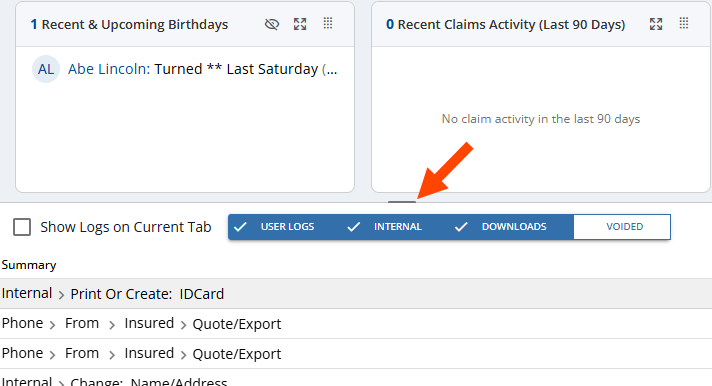
To make the log list larger or smaller on these tabs, hover your mouse over the divider between the log list and the rest of the tab until it turns into a split arrow icon. Click and hold, then drag up or down to increase or decrease the size of the log list on the current tab.
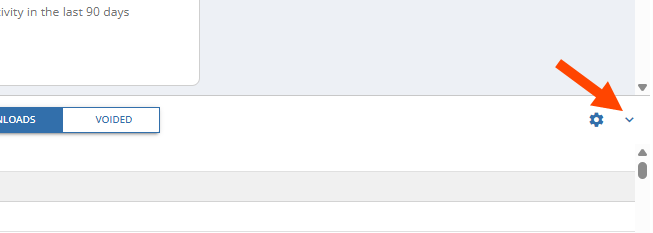
To collapse the log list entirely on the current tab, click the down arrow at the top right of the log list panel. To restore it to the previous size, click the up arrow in the collapsed bar at the bottom of the tab.
Customize the Log list
Click the  Log List Options button to customize viewing options.
Some of the following view settings might not apply to logs migrated from HawkSoft 5.
-
Show Date Per Row - By default, if multiple log notes were created on the same day, HawkSoft only displays the date on the first log note of the day. If checked, each log line will show its creation date.
-
Show Log Reference Numbers - Check this box to show reference numbers from HawkSoft 5 log entries. HawkSoft 6 logs do not include reference numbers, so that field will appear blank. This setting is not saved and must be enabled as needed.
Agencies that were converted from another management system might display reference numbers. However, these references may be inconsistent with the previous system and should be used with caution.
-
Show Row Numbers - Check this box to display a number that counts each log note, starting with the oldest.
Row numbers are subject to change when copying/moving logs, merging clients, and moving policies. Do not reference Row #s in permanent documentation.
- Compress Log List - Check this box to reduce horizontal spacing in the log view. This setting is off by default but stays enabled for the workstation once selected.
- Hide Activity Tags - Select to hide Activity tags in the log list.
- Show Breadcrumbs - Displays the full breadcrumb trail, including contact method and From/To details.
- Minimize Breadcrumbs - Replaces contact method and From/To text with icons.
Hover over an icon to view more information.
- Hide Breadcrumbs - Displays only Log Actions, Activity tags, and the log preview.
- Hide Breadcrumbs and Actions - Displays only Activity tags and log preview.
-
Export Logs - Click this button to export a copy of log notes on the client or by specific policies. See Exporting Log Notes for more information.
Your view settings are automatically saved to your account and applied to all log lists.
Filter the log list
. Click the filter icon to narrow down the log list by a date range or by user(s).
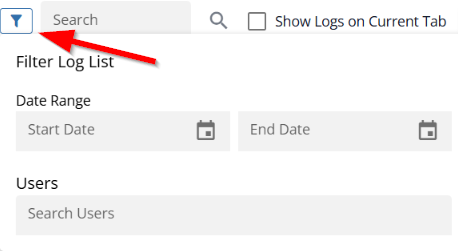
You can also use any of the following filters to limit the list of logs:
✓ User Logs Select to limit the list to logs created through user actions. This list includes Action Logs as well as Quick Logs.
✓ Internal Select to limit the list to logs created when using the Internal Action Menu.
✓ Downloads Select to limit the list to logs created by Carrier Downloads or a third party integration.
✓ Voided Select to limit the list to voided logs. Voided logs include logs from archived policies.
Search for a log
Enter a keyword or Activity Tag title to Search for relevant log notes.
Example: Enter the word "cancel" to view only log notes containing the word or tag "cancel".
Click the
✓ Search Results This button indicates that you are viewing search results. The results display in bold.
View a Log Note
Click on a log to open and view details. The View Log dialog opens, showing the selected log note, along with any appended information. If the log has any linked logs, linked attachments, associated tasks, or hyperlinks, you can click on them to view.
You can opt to view the linked attachments and/or tasks as a list. To modify the log view, click  Settings in the upper-right of the log note and then enable Show Attachments & Tasks as a List.
When viewing a log, any tasks associated with the log note will display the task title, status, due date, and assignee(s). Overdue tasks will display in red text and have an alert  icon. For more information about updating and modifying tasks, see Tracking My Daily Tasks.
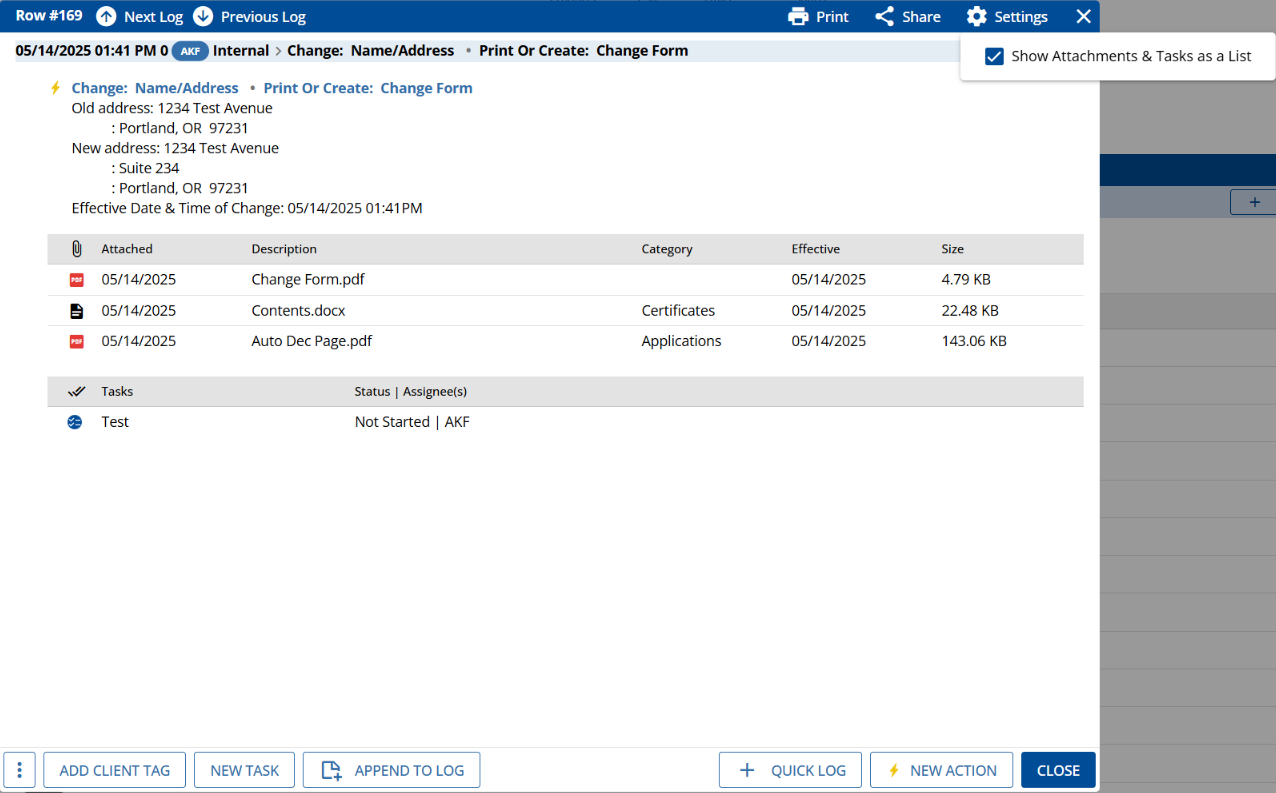
Click Share to copy a link to the log note to your clipboard. You can paste the link into emails and chats with other users in your agency to allow them to quickly open the linked client or log note.
Related Topics