Release Highlights
For the most recent release information see What's New.
 2026
September 10, 2026
2026
September 10, 2026
We are hard at work on upcoming enhancements to the client view, reporting, email logging, ACORD Forms, and more.
September 3, 2026
We are hard at work on upcoming enhancements to the client view, reporting, email logging, ACORD Forms, and more.
August 27, 2026
HawkSoft E-Signature
|
HawkSoft E-Signature (powered by Formstack) now has 2-way integration. When a document is signed, a log note is automatically added and the signed document is attached.. Formstack has also introduced 2 factor authentication to improve document security.
See Sending Documents for HawkSoft E-Signature for more information. |
 August 20, 2026
HawkSoft E-Signature
|
Two-Way Formstack Integration HawkSoft E-Signature (powered by Formstack) now has 2-way integration with Formstack. When a document is signed, Formstack will now automatically add a log note in HawkSoft and attach the signed document. Formstack has also introduced 2 factor authentication to improve document security.
See Sending Documents for HawkSoft E-Signature for more information. |
Trust Accounting & Commissions
|
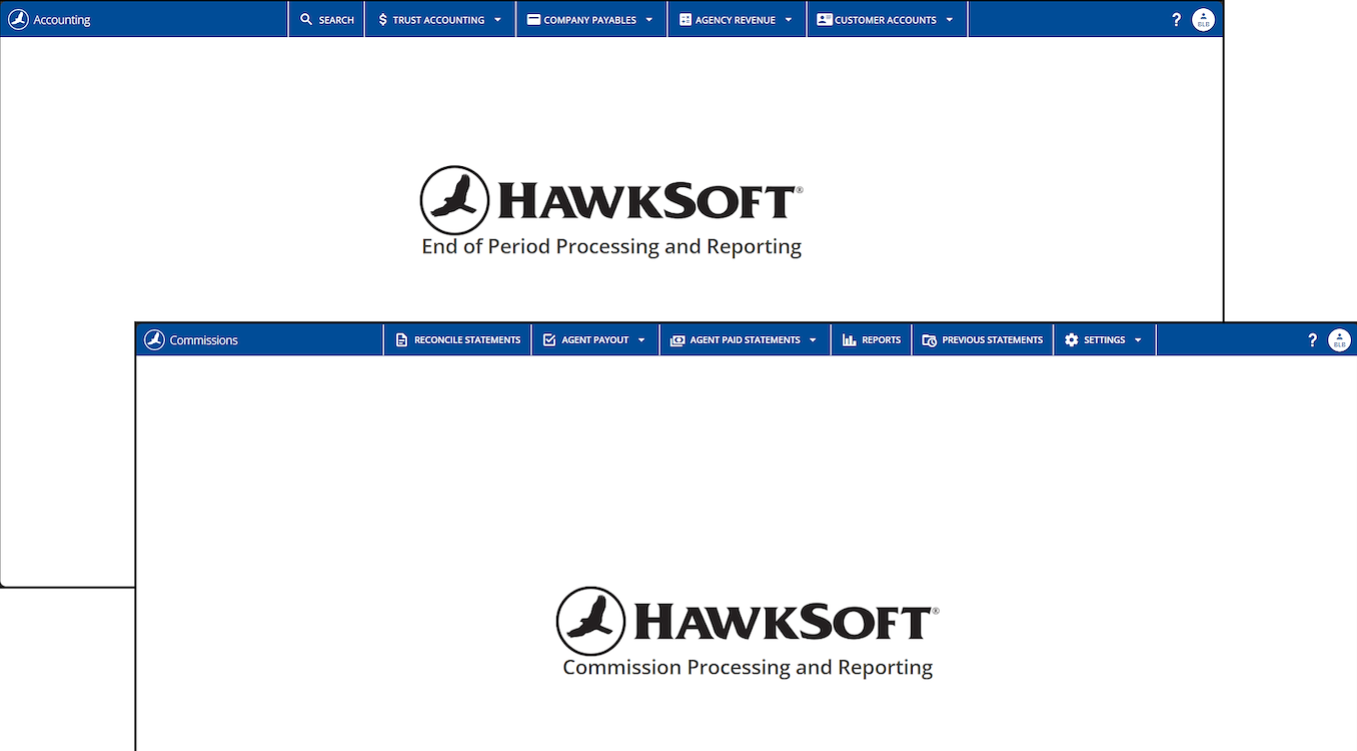
Updated Menu Navigation The navigation menu on the Trust Accounting and Commission pages has been updated to make it easier to navigate with fewer clicks, and to provide more space for the report data on the page. See Commission Tracking Overview and Trust Accounting Overview for more information. |
|
Client View
|
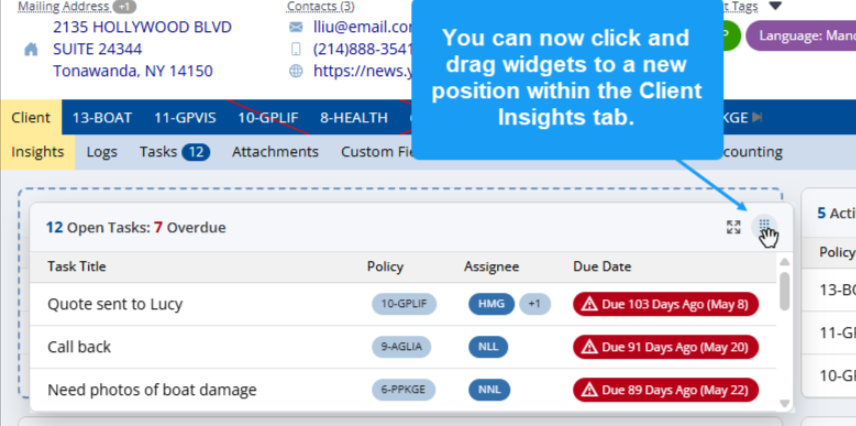
Draggable Widgets on Insights Tab On the Client Insights tab, users can now click the icon in the top right corner of each widget to drag it to a new position on the page. This helps each user customize their Insights tab to prioritize the items that matter most to them. See Insights for more information. |
|
August 13, 2026
Commissions
|
When editing a commission transaction during the Agent Payout workflow, a new Reapply Rules button allows users to recalculate the agent commission for the updated transaction. This keeps the agent commission accurate when changing the agent or term on a transaction. See Agent Commission Payout for more information. |
Log Notes
|
Copy Logs to Multiple Policies When copying a log note, users can now select up to 3 policies to copy the log to, instead of repeating the workflow multiple times. See Copying a Log Note for more information. |
Reports
|
In Agency Intelligence, Status Detail is now an option in the Group By dropdown for policy KPIs. This allows agencies to see more context on policies sold, added, and lost, such as purchase or cancellation reasons. See Agency Intelligence Reports for more information. |
August 6, 2026
Reports
|
A new Yes/No column for Policy Downloads has been added to policy-level reports, indicating whether a policy has ever received carrier downloads. This helps agencies quickly identify which policies do not receive downloads and may need manual updates by staff. For more information, see Renewing a Policy. |
Carrier Setup
|
Copy Settings to Multiple Carriers In Carrier/MGA Setup, the Copy Carrier functionality now allows users to copy selected carrier settings to all or multiple carriers in a single action. This helps agencies quickly make agency-wide updates to settings like application type or term on multiple carriers at once. See Copying a Carrier for more information. |
Log Notes
|
When creating a log, users can now press Ctrl+L to open log templates, and a search bar has been added so users can search to quickly find the desired template in the list. You can use the arrow keys and space bar to select templates, and press Ctrl+Enter when you are done selecting templates. See Creating a Log Note for more information. |
 July 30, 2026
Carrier Setup
|
The look and feel of the Carrier/MGA Setup screen has been updated to a cleaner, more intuitive interface that improves organization, labeling, and navigation for faster and more accurate carrier configuration. See Adding a Carrier or Editing Carrier/MGA Information for more information. |
Other Enhancements
|
Client Insights - Policy Included in Tasks Widget The Tasks widget on the Insights tab of the Client View now displays the policy each open Task pertains to. Clicking on a Task inside this widget will open it on that policy's Tasks tab. See Insights for more information. |
|
Enhancements have been made for importing client/policy data into HawkSoft via MTF files. This enables HawkSoft Partners and other systems that use MTF files to pass more data into HawkSoft. Sub-status, Agent 2 and 3, more driver and personal profile info (such as date of birth, drivers license number and state, and relationship to insured), as well as all newly supported home underwriting fields can now be imported into HawkSoft via MTF file. See Generic/Website Integration for more information. |
July 23, 2026
We are hard at work on upcoming enhancements to the client view, HawkSoft E-Signature, reporting, carrier setup, ACORD Forms, and more.
July 16, 2026
Tasks
|
Task Notifications Users will now receive notifications about newly assigned tasks. Users can click the bell icon next to their username to see their notifications or configure due dates and types of tasks for notifications. This notifies users of relevant upcoming tasks as they are assigned. See Task Notifications for more information. |
 July 9, 2026
Workers' Comp Policies
|
Workers' Compensation policies now include an Individuals Inc/Exc tab where users can enter and manage the list of individuals included or excluded from the policy. This data can be auto-filled to the ACORD 130 form. This data can be used with correspondence templates or HawkLink, and updated by carrier downloads. See Policy Changes Overview for more information. |
Trust Accounting
|
Create & Save Custom Report Layouts All trust accounting reports now allow users to customize the columns displayed and save custom report layouts. Users can save multiple layouts for different workflows or set default layouts for smoother end of period reporting. See Accounting Reporting and Processing for more information. |
 June 25, 2026
Client View
|
Missing Info Enhancements The Missing Information widget on the Insights tab has been enhanced to display missing Required Fields, as set in General Configuration. Fields set as Require on Insert and a few default contact information fields display in red, and Warning fields display in yellow. See Insights for more information. |
Other Enhancements
|
Appended Text on Log Summary When users append to a log, the log summary will now show a preview of the appended text as space allows, making it easier to see what was added without opening the log. See Searching and Viewing Log Notes for more information. |
|
|
Hawksoft.app Menu Enhancements The look and feel of the menu on the hawksoft.app start page has been updated and modernized. Most actions have been consolidated into the left menu pane so users can find things in one place. The menu icons have been updated and the menu pane can be collapsed to an icon-only view to provide more screen space. See Logging In and Out of HawkSoft for more information. |
|
 June 18, 2026
We are hard at work on upcoming enhancements to client view, trust accounting reports, commercial lines, tasks, and more.
June 11, 2026
Reports
|
Updated Report Toolbar The menu bar of available actions from within a Quick Report has been reorganized to remove the three dot menu and make all main actions visible without clicking. This makes it easier to navigate and faster to get to common actions like exporting or printing. Menu items that the user does not have permission to access will now be displayed as disabled, making it more clear that action is required from an admin to grant access. See Saving and Sharing Report Data and Customize, Summarize, and Filter Report Data for more information. |
 June 4, 2026
Commercial Policies
|
New Nature of Business Tab On the Edit Client/Policy screen there is a new Nature of Business tab where users can enter the nature of business type, description of operations, and other details for commercial policies. This data can be flooded to ACORD Forms and copied between a client's policies, and will appear as a tab on the policy view. For more information see Nature of Business. |
Client View
|
Policy Tab Icons In Client/Policy View Preferences, there is a new dropdown for Policy Detail Tab Names that includes options to display tab names as abbreviations or icons. This reduces the length of tabs and maximizes the number of visible tabs. For more information see Tour of the Client and Policy View. |
 May 28, 2026
Login
|
Streamlined login experience HawkSoft now uses a single login to access both desktop and browser features. After logging into the desktop app, users no longer need to log in again when launching browser features like reporting, trust accounting, commissions, and more. Please note that additional sign in is still required for the help portal and when launching HawkSoft Browser App from the Help menu. This will be coming soon! For more information on logging into HawkSoft, see Logging In and Out of HawkSoft. |
|
|
Tip and Trick: Open clients in a new tab from search When searching for a new client, you can choose to open the client in a new tab instead of replacing the one you currently have open. This enables you to quickly switch between clients you are currently working in, or to easily look up information contained in a client for use in another client. See Tips and Tricks for more information. |
 May 21, 2026
Client View
|
New Client Insights Tab The new Client Insights tab brings together your client’s most important information in one place. Quickly review policies, open items, and recent activity without hunting across multiple screens. Users can go to the gear icon in the right corner to configure what widgets are shown and the order in which they display. The Client Insights tab will be displayed by default when opening a client, unless the user has a different tab set as default (this can be configured by selecting Preferences under the filter icon in the right corner of the client bar). For more information see Tour of the Client and Policy View. |
|
|
Pin Client Tabs Users can now pin specific client tabs (Insights, Client Notes, Custom Fields, Policies, and People) to remain visible from any policy tab. This setting is managed in client/policy view preferences and makes frequently needed client information accessible without navigating back to the client tab. For more information see Tour of the Client and Policy View. |
|
|
Customizable Columns on Client Tasks The columns displayed on the client Tasks tab can now be customized by selecting the Column Options icon in the right corner. Add, remove, and reorder columns to get the best layout for your workflows! For more information about working with Tasks on the client, see Working with Tasks from the Client. |
|
 May 14, 2026
Client View
|
Icon Library for Customizing the Toolbar A built-in library of HawkSoft-branded icons is now available when customizing toolbar shortcuts, replacing the default Windows system icon browser. These Icons automatically adjust to the user's current HawkSoft theme for a more cohesive look. For more information, see Customizing the Toolbar. |
|
|
Unmatched Document Quick Link You can now open your Unmatched Documents Inbox from the Quick Links panel on the left-side of HawkSoft Desktop. |
|
 May 7, 2026
We are hard at work on upcoming enhancements to client view, trust accounting reports, commercial lines, tasks, and more.
April 30, 2026
We are hard at work on upcoming enhancements to client view, trust accounting reports, commercial lines, tasks, and more.
April 23, 2026
Client View
|
Hide Client & Policy Tabs Users can now show or hide client/policy sub-tabs such as Claims and Submissions, allowing each user to customize their view and hide tabs that are less relevant to their work. This option can be found by clicking on the filter icon on the client/policy bar and selecting Preferences. See Tour of the Client and Policy View for more information. |
Accounting
|
Edit Invoice Due Date on Receipts When creating a receipt, HawkSoft now warns the user if a payment is missing or a balance remains on new line items, and lets users set the invoice due date before saving. This helps users customize invoices for partial pay or advanced premium workflows. See Creating a Direct Bill Customer Receipt for more information. |
 April 16, 2026
Client and Policy View
|
Copy ACORD Forms from Other Policies In the Action Menu under ACORD Forms, a new Copy Form option lets users easily copy selected ACORD Forms from a policy or the client tab to a different tab on the client. See Creating and Modifying an ACORD Form for more information. |
|
Easily Duplicate Clients A new Duplicate Client option in the Action Menu allows users to create a new client with the name, address, and profile information as the current client. This makes it faster to create multiple client files for the same person or business. See Duplicate a Client for more information. |
|
Enhancements to Duplicate/Remarket Policy Workflow The rewrite/remarket workflow now lets users select which forms are carried over into the rewritten policy, preventing unnecessary or outdated forms from being included. See Rewriting/Remarketing a Policy for more information. |
Document Creator
|
Drag & Drop Initial File When using the Document Creator in the Activities Menu, users can now drag and drop the initial document into the Document Creator if desired, rather than using File Explorer. See Document Creator for more information. |
April 2, 2026
HawkSoft Community
|
New HawkSoft Community Platform We’ve launched a new platform for HawkSoft Community, our product suggestion forum. It’s easier than ever to submit, vote for, and track product suggestions for HawkSoft!
See HawkSoft Community for more information. |
Client Search
|
New Simple Search Option Client Search has been updated with a new look and feel, and we've added a new Simple Search option that makes it easier to find clients and contacts using a single search field. This update is being released to groups of customers in phases. If you don't see the new experience yet, it's coming soon!
See Client Search for more information. |
 March 26, 2026
Client Search
|
New Simple Search Option Client Search has been updated with a new look and feel, and we've added a new Simple Search option that makes it easier to find clients and contacts using a single search field.
See Client Search for more information. Phased Release: Due to the high volume usage of this feature, the search update is being released to groups of customers in phases over the next several weeks. If you don't see the new experience yet, it's coming soon! |
Policy View
|
Fields Added to Vehicle Information New date fields for Vehicle Purchased and Vehicle Leased have been added to personal lines vehicle screens. These fields are displayed in the Vehicle Information window and can be used in ACORD Forms, merge fields, and more. See Vehicles and Auto Coverages for more information. |
Commissions
|
Print and Download Agent Paid Statement as PDF When creating agent paid statements as PDFs users can now choose whether to download a single file or separate files for each agent. See Agent Paid Statements for more information. |
 March 19, 2026
Logs and Tasks
|
Updates to Task Appends and Log View Options A new option in Agency Setup allows agencies to configure whether task info should be automatically appended to the log note when a task is edited. This gives agencies more control over how they document task information in log notes. We have also streamlined the task info being appended to the log note to make it more concise and relevant. See General Settings and To edit, update, or remove a task for more information. Additionally, a new log view setting lets users choose to open the task’s original log or its most recent linked entry. See To review a specific task for more information. |
 March 12, 2026
User Permissions
|
Updated Download Permissions There are now separate permissions for accessing the Downloads Dashboard and Download Reports, allowing admins to give users access to only one area if needed. Users with the current Download Dashboard and Reporting permission will have the new Download Reports permission enabled by default. See User Permissions for more information. |
E-Signature
|
New Merge Fields for E-Signature E-Signature correspondence templates can now include merge fields from Personal Profiles, such as the person's name or date of birth, allowing users to add more specific data to the message. See E-Signature Templates for more information. |
February 26, 2026
Reports
|
Navigating Clients in Report View When launching a client from a report, a Previous and Next button now display in the HawkSoft toolbar so users can quickly move through the clients and policies on that report. As users click the Previous or Next button, the highlighted row in the report moves to the current client/policy. Users must have the HawkLink extension installed for this feature to work; if the extension is not installed, they will be prompted to install it the first time they click the Previous/Next button. See Customize, Summarize, and Filter Report Data for more information. |
Commissions
|
New Rounding Options for Agent Payouts A new Rounding Setting under Agent Commission Rules allows agencies to configure which rounding method HawkSoft uses when calculating agent commission payouts. This gives agencies more precise control over how commissions are split between the agency and agents. See Agent Commission Payout for more information. |
Other Enhancements
|
Launch PDFs with Default Windows Viewer Under the gear icon in the Attachments list, users can now select to launch PDFs using their Windows default PDF Viewer if preferred. See The Attachments List for more information. |
|
Export Activity Tags The list of Activity Tags in Agency Setup can now be exported as a text document, which allows agencies to easily include the list of tags in training materials. See Activity Tags for more information. |
 February 19, 2026
Attachments
|
New Grouping Options In the Attachments list, there are a number of new options in the Group By drop-down, allowing users to quickly locate the attachments relevant to their workflow.
See The Attachments List for more information. |
Tasks
|
Optional Columns for Agency Tasks In Agency Tasks, users can now select to display or hide any of the customizable columns in the Customize View options. See To modify your Agency Tasks view for more information. |
 February 12, 2026
HawkSoft Document Creator
|
Quick PDF Editing Inside HawkSoft The HawkSoft Document Creator is now available in the Activities Menu. This built-in PDF editor lets users highlight, redact, whiteout, merge, and attach documents to clients, without leaving HawkSoft. See The HawkSoft Document Creator for more information. |
 February 5, 2026
Reports
|
Group Filtering for Agency Intelligence and Sales & Retention The Agency Intelligence and Sales & Retention dashboards now allow users to select which groups are displayed by using the filter icon underneath the Group By dropdown. See Agency Intelligence Reports and Sales and Retention Reports for more information. |
|
Data Replace updates for Client Tags Data Replace can now be run directly from a Client Tag Report, enabling users to update client data. Users can also bulk archive Client Tags using Data Replace, making large-scale tag cleanup faster and easier. See Clean Up Client Tags for more information. |
Tasks
|
Automatic Follow‑Up Tasks for Invoices, Payments & Submissions Several new trigger options have been added in Default Tasks, allowing follow-up tasks to be automatically created when actions occur regarding submissions, invoices, and payments. See Default Task Rules for more information. |
 January 29, 2026
Various minor enhancements and bug fixes have been made to Log Notes, Client Viewer and Trust Accounting Reports, and more.
January 22, 2026
Tasks
|
Automatically Log Task Changes When making changes to a task, the updated details are now automatically appended to the log note, eliminating the need to manually enter them in the log note. See Creating a Task for more information. |
Reports
|
Enhancements to Agency Intelligence/Sales & Retention Users now have the option to save and share drill-down reports produced from the Agency Intelligence and Sales & Retention dashboards, making it easier to share these lists of specific clients or policies with other users. On the Agency Intelligence and Sales & Retention dashboards, users can now use the Report View Options in the top right corner to select a saved report layout to use for any drill-down reports generated for that KPI. This setting is remembered and can be customized for each KPI. See Agency Intelligence Reports and Sales and Retention Reports for more information. |
|
Report for Policies with Client Tags A new Quick Report under Client Tags allows users to run a report of all policies with one or more selected client tags, along with relevant client/policy data. See Client Tag Reports for more information. |
Commissions
|
Active "As Paid" Policies with Client Tags A new commission report in the Policy tab allows new users to identify active policies with no reconciled commission in a selected date range, making it easier to follow up on outstanding "as paid" commissions. See Reconciling Commission Statements for more information. |
Other Enhancements
|
Attachments Sorting Reverted Due to customer feedback, we’ve reverted recent changes to attachment sorting so that the attachment list on a client is once again sorted solely by date attached. See The Attachments List for more information. |
January 15, 2026
Trust Accounting
|
Configure QuickBooks Class Codes Agencies that have Class Codes enabled in QuickBooks can now configure Class Codes in HawkSoft's trust accounting settings. This will assign Class Codes on export to QuickBooks, saving time and ensuring accurate reporting. See Trust Accounting Settings for more information. |
Tasks
|
"Overdue by" Column in Agency Tasks Agency Tasks now includes a column displaying tasks overdue by a customizable number of days, giving managers a configurable option in addition to all overdue tasks. See Managing Tasks for your Agency for more information. |
Other Enhancements
|
Contact Information Window Enhancements Enhancements have been made to the look and functionality of the Contact Information window. Users can now click the icon next to a contact's name to automatically highlight it when launching the Contact Information window. See Tour of the Client and Policy View for more information. |
|
Claims Data in HawkLink HawkLink can now flood claims data from HawkSoft into websites. See Using HawkLink for more information on HawkLink. |
2025
December 11, 2025
Reports
|
Contact Info Out of Date In Quick Reports, a new Contact Information Out of Date report allows users to view clients whose info has not been updated for a specified number of days. This helps agencies identify clients to confirm contact information with. See Contact Information Alerts for more information. |
Attachments
|
Attachment Counts on Filter Options When filtering attachments by File Type or Category, counts are now displayed for each option in the dropdown. This helps users find the attachments they are looking for quickly. See The Attachments List for more information. |
December 4, 2025
|
Historical Reporting In Agency Intelligence, users can now view historical trends in their book of business for select Policy and Customer KPIs, with ranges by month or year. This allows agencies to view these KPIs over time and quickly provide a historical view to carriers or other parties. See Historical Performance Analysis for more information. |
Reports
|
Select Default Report Layout In Quick Reports, users can now select to use a saved layout before running the report, rather than applying it after the report is created. The selected layout will be the default the next time that report is run. See Quick Reports for more information. |
|
Share Saved Report Layouts The Layouts option in the options menu of the reporting dashboard allows users to manage and share their saved layouts with other users. Users can also share layouts from within the Column Options dialog inside any report. If a user edits or deletes a layout, these changes are not made to the shared layouts. See Saving and Sharing Report Data for more information. |
Trust Accounting
|
Multiple QuickBooks Connections Agencies may now set up multiple QuickBooks integrations in Trust Accounting Settings, rather than needing to disconnect and reconnect each time a different integration is used. Users can select which integration to use when exporting items. See Trust Accounting Agency Settings for more information. |
Tasks
|
Batch Close Tasks In the Agency Tasks list, users may now close multiple tasks at once using the new Close Selected button, allowing for faster cleanup of tasks. See Managing Tasks for your Agency for more information. |
Other Enhancements
|
New Look and Search in Help Portal Enhancements have been made to the Help Portal, including updates to page navigation and a new more robust AI search engine. This makes it easier to find videos and help articles related to your search, and provides AI summaries for quick answers to questions. |
|
Export User List In User Setup, there is a new option to export the full user list and profile details to Excel for auditing or other purposes. See Export Users for more information. |
|
Migration: Copy Programs to Writing Carrier When editing a carrier, there is a new button under Programs allowing users to copy all or selected programs to the writing carrier if needed. This may be helpful for migrated agencies whose programs were not migrated to the writing carrier on their Custom Carriers. See Create a Carrier for more information. |
 November 20, 2025
Tasks
|
Day of Week on Due Date When a task is due within the next week, the due date now includes the day of the week. This helps users see at a glance which day of the week their upcoming tasks are due. See Tasks Overview for more information about Tasks. |
Agent Portal
|
Client QR Quick Access In the top right corner of the client, there is a new Open in Agent Portal button that displays a QR code, letting users quickly open the client or policy in Agent Portal on their mobile device for use on the go. See To access Agent Portal for more information. |
 November 13, 2025
Reports
|
Modify Date Parameters for 1-Click Reports When running a 1-click report template, there is a new option to "Modify & Generate," which allows users to edit the date parameters before running the report if desired. See 1-Click Reports for more information. |
Activity Tags
|
Setting for Activity Tags on Log Notes In Agency Setup, managers may now enable settings to either warn users when saving a log note without an activity tag, or to require an activity tag before saving. This helps agencies encourage or enforce tagging every log note for reporting or other purposes. See Activity Tags for more information. |
 November 6, 2025
Task
|
Filter Tasks by Type In the Task Center, a new "Associated To" dropdown in My Tasks allows users to filter by the type of task. This helps users review tasks related to attachments (like downloads), logs, and non-client tasks. See Tracking My Daily Tasks for more information. |
Reports
|
Summarize Reports by LOB/Package Policy reports can now be summarized by LOB, with the option to either display packages as individual LOBs or to group the summary by package type. This allows users to view policies with specific packages, such as HOME/AUTOP. See Customize, Summarize, and Filter Report Data for more information. |
Other Enhancements
|
Gmail Authentication In the Email Integration dropdown under User Preferences, there is now a direct integration option for Gmail, allowing users to quickly integrate their Gmail account instead of configuring a separate password. For users that have already integrated their Gmail account using the SMTP option, there is no need to change to the new option unless desired. Only the setup process has been updated, not the functionality of the integration. See User Email Integration for more information. |
|
Copy Attachments to Multiple Policies When copying one or more attachments to other relevant policies via the right-click menu, users may now select multiple polices (or the client tab) to copy the attachments to, rather than repeating the process for each policy. See Copying an Attachment to Another Client/Policy for more information. |
October 30, 2025
Tasks
|
Set Field for Default Focus When creating a new task, in the Settings menu, users may now select a Default Focus field where the cursor will initially be set in the new task. This makes it faster to start typing in the desired field, such as the Template dropdown, without clicking. See Creating a Task for more information. |
Status Dashboard
|
View Status of Cloud Services A new Status Dashboard link in the Help |
 menu allows users to view the real-time status of HawkSoft Cloud Services, get the latest updates during service degradations, and track incident history.October 16, 2025
Trust Accounting Reports
|
View Transactions for All Offices For agencies with User Permissions by Office enabled, users can now run trust accounting reports and view transactions for all offices where they currently have permissions. This allows users to run one report with multiple offices, rather than a report for each office. See Running the Trust Accounting Report for more information. |
Reports
|
Filter Dates by Days Before/After Today When filtering a report, there is now an option to select a custom number of days before or after today, making it easier to create a 1-Click Report for the desired number of days. To learn more about report filters, see Customize, Summarize, and Filter Report Data. |
|
Customize Days on Birthday Report Birthday Reports can now be run for a customized number of days in the future (including or excluding today), allowing users to quickly view or create a 1-Click Report for a custom number of days. Visit Quick Reports to learn more about reports. |
 October 9, 2025
Reports
|
Report Templates Are Now 1-Click Reports In Quick Reports, Report Templates are now titled 1-Click Reports! Users can save any customized report as a 1-Click Report that's quick and easy to run any time. See 1-Click Reports for more information. |
|
Group By Column in Business Intelligence In Agency Intelligence and Sales & Retention reports, the Group By column in data tables now stays in place when scrolling, making it easier to see which group each data point belongs to. |
 October 2, 2025
Reports
|
Enhancements to Business Intelligence Graphs Agency Intelligence and Sales & Retention charts have been enhanced to be clearer to read and use, allowing users to filter or select which items are displayed on the chart.
Export Business Intelligence Charts The data tables at the top of Agency Intelligence and Sales & Retention KPI dashboards can now be exported to CSV and printed, making it faster to share this data with carriers or networks. See Agency Intelligence Reports and Sales and Retention Reports for more information. |
Accounting
|
Fewer Steps in Client Workflows Several client accounting workflows have been consolidated to eliminate the "finalize log" step, reducing the number of clicks required to complete the workflow. |
 September 25, 2025
Reports
|
Export Policies as AL3 There is now an option to Export Policies as AL3 in the options menu under Batch Actions on policy reports. This allows agencies to mass export policy data in AL3 format for situations like quoting a book of business with a new carrier. See To export as CSV for more information. |
 September 18, 2025
Trust Accounting
|
Date Type in Search In trust accounting search, there are now multiple Date Type options when searching within a date range (Creation Date, Export Date, etc). This gives users more flexibility to generate reports of specific items in a date range. See Accounting Reporting and Processing for more information. |
Agency Setup
|
View User Sign-ins Agencies are now able to see a log of user sign-in attempts. This is available under a new menu option within Agency Setup > Users. See Manage Agency Users for more information. |
 September 11, 2025
Logs and Tasks
|
Hyperlinks in Logs and Tasks Hyperlinks can now be pasted into or created in log notes and task instructions (including task templates), allowing users to include clickable links to websites. See Creating a Log Note and Tasks Overview for more information. |
Other Enhancements
|
Sort Reports by Coverage Amounts Coverage reports can now be sorted by the limit or deductible amount, allowing users to quickly find specific coverage values. |
|
Sort and Filter Signed-in Seats Sorting and filtering capabilities have been added to the list of currently signed-in seats under Agency Setup > Seats, making it easier to navigate and manage the agency's current seats. See Seat Management for more information. |
|
Release Highlights The Release Highlights popup window on the Start Page can now be relaunched at any time by clicking the Release Highlights link in the HawkSoft Corner on the Start Page. To see the What's New page in the Help Portal with each week's videos, select What's New in the Help (?) menu. See The HawkSoft Start Page for more information. |
September 4, 2025
Reports
|
Report Template Links In the Report Templates dashboard, users can now copy a direct link to run a report template. This allows users to paste the report link into a calendar event so they can schedule recurring one-click reports if desired. Report links can only be opened by users with whom the report template has been shared. Remember to share the report template with the desired users before providing the report link to them. See 1-Click Reports for more information. |
Other Enhancements
|
Remove Activity Tags on a Log In the option menu when viewing a log, users can now remove activity tags from the log if needed. This action will be documented and appended to the log. See Activity Tags for more information. |
|
|
Default Order of Coverages In Carrier Setup, users can now arrange the order in which coverages are displayed on the LOBS for each carrier, rather than displaying alphabetically. This selected order will be displayed on the coverages on Edit Client/Policy screen, which propagates to ACORD forms and various coverage tabs. See Carrier Coverages and Lines of Business for more information. |
|
|
Shortcut for Saving Attachments When attaching a document to a client, users can now press Ctrl+Enter to attach the document without clicking the Attach button. |
 August 21, 2025
Reports
|
Select Multiple Offices On the Quick Reports for All Clients/Policies, Active Clients/Policies, and Claims, users can now select multiple offices in the Office dropdown. This allows managers to run one report that can be quickly summarized or filtered by office. You can now also select multiple users when running an Activity Report. The user will only see the offices and associated clients/policies that they have user permissions to view. See Quick Reports for more information. |
 August 14, 2025
Commissions
|
Anticipated Commissions Users can now quickly create commission statements with anticipated transactions for carriers that do not provide downloaded or importable commission statements. Anticipated transactions are estimated transactions calculated by HawkSoft using policy data.
See Commission Tracking Overview for more information. |
 August 7, 2025
|
Minor Enhancements Multiple bug fixes and minor enhancements have been made to accounting, attachments, client view, commissions, reports, ACORD Forms, and more. |
July 31, 2025
Log Notes
|
Customize log list view There are new options available in the Log List Options menu to customize what info is displayed in the log list. This allows users to choose to display or hide the "breadcrumbs" that started the log, the actions of the log, or the activity tags. There is also an option to "Minimize Breadcrumbs," which displays the breadcrumbs as icons that take up less space in the log list. See Searching and Viewing Log Notes for more information. |
Reports
|
Edit an existing template Users now have the option to overwrite an existing Quick Report template without saving it as a new template first. When saving a Quick Report template, if a template with the same name already exists, users now have the option to overwrite the existing template rather than creating a new template, if changes are needed. See 1-Click Reports for more information. |
|
|
Personal Profile report Personal Profile reports, such as Birthday Report, now include columns for additional data fields like Producer, CSR, and Business Name. |
July 24, 2025
Log List Enhancements
|
Action Details The log list on a client now shows additional details for specific actions taken on a log, such as when a payment is taken. See Searching and Viewing Log Notes for more information. |
|
|
Compressed View In the Log List Options menu there is now an option to "Compress Log List," which reduces the horizontal spacing in the log list so more information can be seen without scrolling to the right. See Searching and Viewing Log Notes for more information. |
|
|
Appends In the log list on a client, log notes with appends now display with an append icon at the end of the summary so it's easy to see at a glance which logs have been appended. See Searching and Viewing Log Notes for more information. |
Updating Tasks from the Log List
|
Right-click menu In the log list, users can now right-click on a log to quickly create, edit, or close a task on the log. If only one task is associated with the log, this opens the task for the desired action. If multiple tasks are associated with the log, the right-click menu allows the user to select the desired task. The menu displays up to 10 associated tasks, so if the log contains more tasks than this, you may need to open the log to find the desired task. See To create a task in the flow of work for more information. |
Other Enhancements
|
Print multiple agent paid statements On the Agent Paid Statements summary, users can now select multiple agents to print statements at once, rather than printing each statement individually. See Agent Paid Statements for more information.
|
|
|
New Download Report Options In the Download Report, there are two new preset options for Download Activity for Yesterday and for Last Weekend, allowing users to quickly run reports for these common options without setting a date range. See Download Report for more information. |
 July 17, 2025
Reports
|
New Vehicle Detail Report A new Vehicle Detail Report is available in Quick Reports > Policy that includes many vehicle detail fields as columns. This makes it easier to report on vehicles and filter by make, model, year, and more. The report displays one vehicle per row and returns all vehicles on the following LOBs: AUTOP, AUTOB, CYCLE, RECV, TRKRS, GARAG, MOPRO, MTRCR, MTRTK, and TRANS. See Quick Reports for more information. |

Accounting
|
Invoice / Credit Memo Format Enhancements The formatting of printable invoices and credit memo PDFs has been enhanced for easier reading, and Customer ID has been added to the Bill To section. |
Client View
|
County Added to Client Address There is now a County field in the client's Mailing and Physical Address. If a county is entered, it will be displayed upon clicking the Mailing Address link on the client. |
 July 10, 2025
Default Tasks
|
New Tasks Triggers and Conditions Default tasks now include more than 15 additional trigger options for creating tasks when users perform actions like changing a policy status, importing or creating a client, remarketing a policy, sending a document for E-Signature, and more. These tasks can be set to target specific carriers, LOBs, and billing types. Keep in mind that default tasks are only triggered by user actions, not policy changes from downloads (which can be controlled with download task rules). See Default Task Rules for more information. |
Accounting Reports
|
Company Payable/Agency Revenue Reports When creating a company payable or agency revenue report, there are now multiple date options to choose from (creation date, invoice due date), in addition to the item date. See Running the Unpaid Company Payables Report for more information. |

Reports
|
Birthday Report Birthday reports now include preset date range options like "next week," in addition to custom date ranges. This allows users to save the report as a template that can be run with one click. See Quick Reports for more information. |
|
| Launch Client from Report
When launching a client from a report, there is now a right-click option to open the client in a new tab if desired, instead of the default behavior of launching in the existing tab. See Customize, Summarize, and Filter Report Data for more information. |

Client Merge
|
Merge more Data to matching Policy When merging clients, if there is a matching policy on both clients, data from the source policy (log notes, attachments, and policy history) will now merge to the target policy so that the user does not need to move these items manually after the merge. See Merging Clients for more information. |
June 26, 2025
Tasks
|
View Task Status and Due Date when Viewing a Log Note When creating or viewing a log note with associated tasks, each task now displays the task status and due date. Overdue tasks will display in red text and have an alert |
|
|
Task Center now shows Due Task Totals The title bar in the Task Center now displays the count of Tasks that are due. |
 icon. This makes it easier to identify task details at a glance from a log note. See
Client Viewer
|
New Ways to Filter, Search, and Access Contact Info When viewing the Contacts Information screen on a client, users can now sort and search the list to find desired contacts more quickly. The arrow keys and space bar may be used to move through the list and launch actions. Users now have the ability to filter the contacts list from the People tab, making it easier to find a contact. When double clicking on a person on the People tab, contact information associated to that person is now displayed in the Personal Profile window, and can be copied by clicking. |

Reports
|
New Home Underwriting Report A new Home Underwriting Report has been added to Quick Reports, making it easier to report on all active policies, with some home underwriting information included as columns. See Quick Reports for more information. |
Downloads
|
New Update Alert Download Task Rule The Uprate Alert download task rule has been replaced by new Rate Increase threshold options when creating task rules for Renewals or Renewal Quotes. This helps prevent duplicate tasks created by downloads, and provides flexible options for creating multiple rules based on premium increases or decreases. Any previously created Uprate Alert rules have been replaced by two new equivalent rules, one for Renewals and one for Renewal Quotes, using the existing rate increase percentages. See Download Task Rules for more information. |
 June 19, 2025
Attachments
-
Customize Columns in the Attachment Tab
Users can now click the
 Column Options icon from the top right corner of the Attachments tab on a client/policy to customize the order of the columns and display the information that is most relevant to them first. Users may also click on each column header on the Attachments tab to sort column by alphabetical order. See The Attachments List for more information.
Commissions
- View Change History in Agent Rules
In Agent Commission Rules, the new Agent Rules History button allows users to view the history of changes made to agent rules in the last 90 days. This makes it easier to see what recent changes have been made and which user made the changes. See Agent Commission Rules for more information.
Other Enhancements
- Import and Export Locations and Buildings
From the Locations screen on a policy, users can now import and export locations and buildings to/from the policy via a CSV spreadsheet. This reduces the need for manual data entry when adding or updating locations and buildings on a policy. See Export/Import Locations, Homes, and Buildings for more information.
June 12, 2025
Client View
-
Streamlined Company Info access
You can now click the Business Type link above the Client Name to easily view the Company Information details (such as the FEIN, Business license number, NAICS Code, and website) when viewing a Business Client. See Name and Address Information for more information.
Reports
-
Add Cancel (Pending) option to Policy Renewal Report
You can now include policies with a Cancel (Pending) status in Policy Renewal Reports, allowing you to easily find policies that are currently active but have a pending cancellation. See Quick Reports for more information.
Log Notes
-
Overdue tasks turn text red in Log View
Logs with overdue tasks now appear in red text, making it easier to spot and address overdue items quickly. See Voiding a Log Note for more information.
June 5, 2025
Reports
-
Update some Policy Statuses or sub-statuses with Data Replace
Users can now update certain Policy Statuses/Sub-statuses on policies in bulk via Data Replace, as well as Status Date. This allows agencies to mass update policies for common needs, such as updating Expired policies to Replaced or DeadFile. See Data Replace for more information.
-
Home Coverage Report Dwelling Coverage
On the Home Common Coverages Report, if a policy has no deductible on the Dwelling coverage, the standalone Dwelling Deductible will be displayed instead, if one exists. This helps with carriers that may include the deductible in this field on the download. See Quick Reports for more information.
-
Launch Clients in existing tab from reports
When launching a client from a report, the first instance will open in a new client tab. Subsequent clients from the same report will now open in that tab, rather than creating new tabs. See Agency Reports Overview for more information.
Log Notes
-
Update Policy Information tab to match logs
The logs displayed on the Policy Information tab on a client are now more consistent with the behavior on the Logs tab, allowing users to view all logs, search, and filter. See Searching and Viewing Log Notes for more information.
Other Enhancements
-
Calendar Range Update
On date fields, the calendar date picker now displays a few days of the previous and next month, making it faster to select an upcoming date without clicking to another month.
-
Export specific Clients with Data Export
Under Data Export in Agency Setup, admins may now select to export data for only specific clients, rather than all clients, minimizing the amount of data exported. See Exporting Agency Data for more information.
May 29, 2025
Client View
-
Select Default Client Detail Tab
Users may now set which client detail tab is displayed by default when the Client tab is selected. This allows users to start on the tab they use most often, reducing clicks to navigate to the desired tab. This option can be set by clicking on the
 Filters icon on the client/policy bar and selecting Preferences. See
Tour of the Client and Policy View for more information.
Filters icon on the client/policy bar and selecting Preferences. See
Tour of the Client and Policy View for more information.
-
See All Carrier or Vendor Contacts When Sending Email
When sending an email in HawkSoft via the Action Menu, the Recipients screen now has an option to view email addresses from all vendors or carriers if desired. See Email Overview for more information.
May 22, 2025
Agency Tasks
-
When reassigning or deleting agency tasks in bulk from the Task Center, there are now additional filters to search for tasks by office, application type, and non-client tasks. This makes it easier to identify the correct group of tasks to update. See Managing Tasks for the Agency for more information.
Attachments
-
When uploading an attachment, typing in the Description or Category field now displays the items that start with the typed characters first, before the items that contain those characters. See Attachment Properties for more information.
Client View
-
Users may now click and drag to scroll through the client/policy tabs and detail tabs on a client, in addition to using the arrow keys.
May 15, 2025
Attachments
-
Viewing Attachments and Tasks on Log Notes
Enhancements have been made to how attachments and tasks are displayed on log notes. Attachments now display more file information and are separated from Tasks.
There is now a new setting on the log view to display the attachments and tasks as a list if desired, rather than buttons. This makes it easier to view logs with a large number of files attached. See Searching and Viewing Log Notes for more information.
Tasks
-
View Tasks by Client Office
In the Task Center, tasks may now be grouped by Client Office for both My Tasks and Agency Tasks, allowing users to more easily view tasks by office. See Tracking My Daily Tasks and Managing Tasks for the Agency for more information.
Reports
-
Report Navigation
When launching a client from a report, the selected row is now highlighted. Users can move the highlighted row in the report by using the arrow keys, or hit Enter to launch a client. This helps users keep their place when working through a report. See Agency Reports Overview for more information.
May 8, 2025
Log Notes
-
Log text colors
When creating a log note or template, users may now change the text color or highlight color by selecting one of the provided color options. This allows users to create visual distinction or use color coding inside log notes. See Creating a Log Note for more information.
Text and highlight colors are not currently displayed on logs migrated from HawkSoft 5, but we are evaluating ways to address this in the future.
-
Filter Internal logs
There is a new filter option in the log list for Internal logs, allowing users to display or hide them in the log list as desired. See Searching and Viewing Log Notes for more information.
Trust Accounting Reports
-
New Columns on Trust Accounting Reports
Company Payables and Agency Revenue reports now include columns for office, agent details, payable details, agency revenue details, and more. These reports can be filtered by office or bank. See for more information.
Shared Reports
-
Batch Actions on Shared Reports
Users may now perform batch actions (batch email, logs, client tags, and data replace) on reports that are shared to them, providing more functionality on shared reports. These actions remain dependent on the user's Batch Actions permissions. See 1-Click Reports for more information.
May 1, 2025
Tasks
-
Launch Task Center as a tab inside HawkSoft
A new setting under My Workstation Settings allows you to view the Task Center in a tab inside HawkSoft rather than in a separate window if desired. This makes it easier to move between tasks and other areas of HawkSoft for workstations with a single screen. See Managing Tasks for the Agency for more information.
Attachments
-
Drag and drop attachments to log notes in Task Center
When creating a log note from the Task Center, users can now drag and drop attachments into the log note. See Tracking My Daily Tasks for more information.
Emails dragged from New Outlook will still need to be downloaded first.
Commission Statements
-
Search transactions on unreconciled commission statements
The new keyword search bar on unreconciled commission statements allows users to search and filter transactions by the insured's name or policy number. This helps users quickly find specific transactions in the list. See Reconciling Commission Statements for more information.
April 24, 2025
Tasks
-
Close multiple tasks
Users with permission can now close multiple tasks in the My Tasks list at once from the Task Center, by selecting the checkmark to the left of each task and then clicking Close Selected. Upon closure, users may also add text to be appended to any log notes associated with the selected tasks. See Tracking My Daily Tasks for more information.
-
Task closure information on log notes
When closing a task, the task information (including the task title, category, creator, and assignees) is now automatically added to the associated log note. This makes it more clear which task was closed without extra clicks. See Creating a Task for more information.
Reports
-
Add commission columns to reports
Users may now add columns for Total Commission (dollar amount), Commission Count (number of reconciled transactions), and Last Commission Reconciled (date) to any policy report, providing more flexibility in viewing commission data alongside other report data. SeeCustomize, Summarize, and Filter Report Data for more information.
Users must have the permission for Viewing Commission Transactions on Clients to access these columns.
Log Notes
-
Filter logs by activity tag
Users can now filter the log list by activity tag. Simply search for the desired activity tag in the search bar on the log list to view log notes with the selected tag. See Searching and Viewing Log Notes for more information.
Other Enhancements
-
User setup
When converting a Tracking Only user to a normal user, there is now a drop-down to add a permissions template to the user, if desired. See Manage Agency Users for more information.
-
Download Attachments
The most common attachment types (including carrier downloads, PDFs, and image files) now open in HawkSoft's new attachment viewer. This resolves the recent issue with downloading PDFs from AL3s, eDocs, and Claims. See Carrier Downloads Overview for more information.
April 3, 2025
Activity Tags
-
When adding activity tags to a log, a new search bar allows users to filter activity tags using search terms. This makes it faster to find the desired tag. See Activity Tags for more information.
-
Shortcut keys are also available for this workflow. Users can press Alt+A to search, arrow keys to navigate through the results, and Enter to select a tag.
March 27, 2025
Tasks
-
When editing or closing a task in the Task Center, users can now create or append a log note directly from the task, rather than needing to open the client. SeeTracking My Daily Tasks for more information.
Accounting
-
When creating a client statement, there is a new option for All Open Items. This includes open invoices, partially applied and unapplied credit memos, and payments. See Creating a Customer Statement for more information.
Quick Reports
-
The new Line of Business Policy report in Quick Reports allows agencies to run a policy report for clients that have, or are missing, specific LOBs and then summarize based on policy fields like Carrier. See Quick Reports for more information.
March 20, 2025
Additional Interests
-
When creating an Additional Interest on a policy, there is now an option to add it to the Additional Interests database if there is not yet an entry with that name and address. This option is also available in the certificate workflow under the certificate holder. This allows users to more easily update the Additional Interest database utilized by all users. See Additional Interests for more information.
Other Enhancements
-
Multiple bug fixes and minor enhancements to downloads, reports, accounting, commission, agency setup, and more.
March 13, 2025
Commissions
-
Manual Commission Statements
When creating a manual commission statement, users may now add a total commission paid amount for the statement. This amount and the current total of the transactions entered on the statement are now both displayed on the statement, helping users track the transactions entered against the total. See Creating and Managing Commission Statements for more information.
Tasks
-
Agency Tasks
A new Customize View button in Agency Tasks allows each user to customize their own view and task date ranges. See Managing Tasks for the Agency for more information.
-
The number of days shown in the Due, Created, or Done columns can be changed.
-
A column can be added for a custom date range of up to 30 days.
-
Other Enhancements
-
Client Search
Business Name now always performs a Contains search, while First/Last Name searches follow the selected radio option for Starts With or Contains. See Client Search for more information.
-
HawkLink
The HawkLink extension is now available in Microsoft Edge, in addition to Google Chrome! This option can be selected in User Preferences > Website, as well as in Carrier Setup for website links configured in the carrier. See HawkLink Setup for more information.
-
Tracking Only Users
There is now an option to convert a Tracking Only user to a normal user from the user profile, rather than needing to delete and re-create the user. See Modify a User Profile for more information.
February 27, 2025
Tasks
-
My Tasks
A new Customize View button on the My Tasks tab in the Task Center allows users to change the number of days displayed in the "Next 7 Days" view, and to create a customized view for any date range of up to 30 days. This provides more flexibility in viewing upcoming tasks. See Tracking My Daily Tasks for more information.
-
Editing Tasks
When a task is edited, closed, or reopened, this Action is now added to the associated log note. This makes it easier to see updates to tasks in the log notes, and allows users to report on these actions in Activity Reports. See Managing Tasks for the Agency and Activity Reports for more information.
February 20, 2025
Submissions
-
Submission tracking enhancements
Enhancements have been made to workflows on the Submissions tab to make it easier to view updates to submissions in log notes. See Track Submissions for more information.
-
Log notes: Creating a new submission or submission group now creates a log note (with the ability to add tasks, activity tags, etc). When a submission is updated, the updates are appended to the original log note.
-
Past submissions: For past submissions that do not have an associated log note, editing the submission will create a log note.
- Archived group: Archiving a submission group now creates a separate log note, linked to the original log note for the submission.
-
Creating a new group: There is now a button on the Submissions tab to create a new submission group, which can be done without creating an individual submission.
-
Other Enhancements
-
Client Type on Quick Reports
When running a Quick Report for All Clients or Active Clients, there is now an option to select the desired Client Type before creating the report. This allows users to run a report faster for only a subset of clients by type. See Quick Reports for more information.
-
Accounting reports
A number of additional data columns have been added to Customer Accounting Reports (Customer Balance, Unapplied Credit, Invoice Reports). See Accounting Reporting and Processing for more information.
-
Agent Payout
In the Agent Payout area, users may now use Shift + Click to select a range of transactions without clicking each one individually. See Agent Commission Payout for more information.
-
ScratchPad
The ScratchPad now remembers the last used "Always on Top" setting, allowing it to display on top of other HawkSoft windows.
February 13, 2025
Commissions
-
Calculator for retained commission
After adding a line item to an invoice, there is now an icon
 next to the retained amount which opens a basic calculator to help users calculate retained commission.
 The calculator displays the commissionable premium, retained amount, and calculated commission percentage for the line item. Editing any of these fields will update the retained commission. See Creating an Invoice for more information.
HawkSoft Updates
-
Pop-up prompt to update HawkSoft
Updates have been made to the pop-up that displays when users have not closed out of HawkSoft since an update was released, prompting them to save their work and refresh the page so HawkSoft can update.
If the user selects "Later," the update will occur when they reload the page or close and reopen HawkSoft.
February 6, 2025
Search
-
Search enhancements
Several enhancements have been made to the Client Search function to improve the results found. See Client Search for more information.
-
Contains: When searching by name, users may now select whether to view results that contain the search term, or results that start with the search term.
-
Load more results: There is now an option to load more results if the desired client is not found in the initial 50 results.
-
Include Preferred Name: Search results now include Preferred Name if applicable, in addition to First and Last Name.
-
Commissions
-
Commissions Reports
All reports in the Commissions area may now be exported to CSV, including Reconcile Statements, Previous Statements, Agent Payout, and the Agent Paid Statements overview. See Commission Tracking Overview for more information.
January 30, 2025
-
Email integration enhancements for NEW Outlook
HawkSoft now supports enhanced integration with Office 365 (NEW Outlook)!
There is a new option for Microsoft Office 365 in the email integration dropdown under User Preferences. Selecting this option will allow you to use the Outlook email editor when sending an email in HawkSoft, rather than the HawkSoft email editor. This allows additional options for formatting, adding signatures, contact access, etc. See User Email Integration and Email for more information.
-
Drag & Drop
Drag & drop of emails and attachments into HawkSoft from NEW Outlook is now supported for both desktop and browser windows. This functionality is not currently supported for accounts from other email providers displayed within Outlook (e.g. Gmail). See Drag and Drop Documents for more information.
Reports
-
Activity Report enhancements
Include appends: When running an Activity Report, there is now an option to include log note appends in the report for agencies who wish to report on updates made to logs. Appends are shown as separate rows on the report, with "Append" listed in the Channel and Action columns. See Activity Reports for more information.
Launch Log Note: When double clicking on a log note in an Activity Report, the report now launches the selected log note rather than the Logs tab, making it faster to view the full log note.
Other Enhancements
-
Policy Notes
When editing a client, there are now tabs for both Client Notes and Policy Notes. Saved notes now appear in the Notes tab on the relevant client or policy. See for more information. See Policy Overview for more information.
-
User List
In Agency Setup > Users, the user list now displays all users, rather than only the first 100 users. This makes it easier for large agencies to look through their full list of users. See for more information. See Manage Agency Users for more information.
January 23, 2025
Accounting Statements
-
Create client statements in bulk
Users can now create multiple client accounting statements at once when selecting items in the Customer Balance Summary report. A statement attachment is automatically logged to each client. See Creating a Customer Statement for more information.
Data Replace
-
Data replace "annualize premium"
The Data Replace workflow now includes the option to update the Annualize Premium checkbox on multiple policies at once.
Download Task Rules
-
Download task rules by office
When applying offices to a download task rule, there is now an option to select/deselect all offices, and to select or search for specific offices. This makes it easier to configure rules for agencies with a long list of offices. See Download Task Rules for more information.
January 16, 2025
Tasks
-
Send installation instructions to new users
When creating a new user, there is now an option to send that user an automatic email with instructions on how to install HawkSoft, making it easier for new users to get started.
The admin will still need to provide the user with their agency ID, user initials, and password.
Cancel/Report Memos
-
Progressive Cancel/Report Memos
Cancel/Report Memos from Progressive will now be processed as individual downloads for each included client/policy rather than as a single file, eliminating the need to manually attach to each policy.
Each item will be automatically matched or go to Unmatched Downloads if no match is found. Separate tasks will be created for each item if a download task rule is enabled for Memos.
January 9, 2025
Tasks
-
Closed tasks on client
When viewing the Tasks tab on a client, users may now select to view tasks closed up to 365 days ago. See Tracking My Daily Tasks for more information.
-
Log note settings
In Agency Setup > Settings, the setting for Requiring Log Notes on Tasks now includes a new option to require a log note only when closing a task, allowing users to edit tasks without creating log notes if desired. See Requiring Log Notes on Client Tasks for more information.
-
Task description
The Task Description field has been renamed to Task Instructions to make it more clear that this area is for notes about how to perform the task, while client/policy notes should be entered in the log note. See Tasks Overview for more information.
Commissions
-
Manual commission transactions
Enhancements have been made to make it faster to add multiple manual commission transactions in a row. This includes the ability to tab between fields, and a new checkbox that allows you to add another transaction upon saving. See Creating and Managing Commission Statements for more information.
Logs and Attachments
-
Increased visual contrast on log and attachment lists
Adjustments have been made to the colors and fonts in the Logs and Attachments lists to provide more visual contrast and make them easier to read.
2024
December 12, 2024
Commissions
-
Details on Agent Paid Statements
When viewing the Agent Paid Statements report, users can now drill down into each agent to see transaction details. See Agent Paid Statements for more information.
-
Enter policy number on transactions
When creating a commission transaction, users may now enter a policy number if desired. This will automatically search for and match the transaction to that policy if found. See Adjusting Commission Transactions for more information.
Tasks
-
Policy Dates in Tasks
Effective, Status, and Expiration Dates may now be added as columns in the Task Center, which assists agencies in prioritizing tasks based on policy dates. When viewing a task associated with a policy, these dates are now displayed in the task details.
Quick Reports
-
Prospect/Lead Policies report
A new Quick Report for All Prospect or Lead Policies allows users to start a report with only these policies. See Quick Reports for more information.
-
Filter by office
The All Clients/Policies reports and Active Clients/Policies reports may now be filtered by client or policy office. See Quick Reports for more information.
Other Enhancements
-
Delete text conversations
In HawkSoft Text Messaging, users with texting administrator permissions may now delete conversation threads if needed, which will remove the selected messages for all users. See Processing Text Messages for more information.
-
Book of business export
In Agency Setup > Settings, a new tab for Book of Business Sale allows admins to export specific client/policy data for a partial book of business sale to a non-HawkSoft agency. See Exporting Agency Data for more information.
December 5, 2024
Tasks
Append log from a task
-
While viewing or editing a task on a client, users may now append to an existing log note. This gives users the option to quickly update a task without creating another log. See Tasks Overview for more information.
Closure notes
-
The Closure Notes field has been removed from tasks, as users may now simply add a log or append to an existing log. Closure notes on prior tasks can still be viewed on the task history.
Task options
-
When editing a task, the Description and Due Time fields are now collapsed underneath More Options unless one of these fields has been filled out. This prevents users from mistakenly adding info in the description field instead of the log note.
Other Enhancements
Data Replace
-
The carrier may now be updated on policies in bulk using data replace in Quick Reports. See Data Replace for more information.
Manual commission transactions
-
The screen for entering manual commission transactions has been streamlined, making it faster to create transactions. More improvements to this workflow are coming soon! See Adjusting Commission Transactions for more information.
November 21, 2024
Miscellaneous Enhancements
-
Minor enhancements to accounting, commissions, reports, downloads, carrier setup, and more
-
Multiple bug fixes
November 14, 2024
Multi-Office Setup
Assign users from office profile
-
For agencies with multiple offices configured, users can now be assigned to an office from the office profile, as well as from the user's profile. All users assigned to an office can now be viewed from the office profile, making it easier to view and assign the office for multiple users at once. See Multi-Office Setup for more information.
Quick Reports
New policy reports
-
The Policies Added by Date Range and Policies Sold by Date Range reports found in Agency Intelligence are now also available as Quick Reports, allowing users to save summarized versions as templates. See for Quick Reports more information.
-
A new Status Change report finds policies with any policy date field that falls in the specified range, making it easier to run reports for new business or changes. See for Quick Reports more information.
Invoicing
Print invoice with applied credits
-
When printing an invoice, there are now options to print the original invoice, or print with currently applied credits. A log will automatically be created upon printing. See Invoicing Overview for more information.
November 7, 2024
Data Export
Manage, save, and import data exports to other systems
-
In Agency Setup under Settings > Data Export, the data export workflow has been enhanced to make it easier to manage data exports. See Exporting Agency Data for more information.
-
Agency Data and Tasks now export to a combined SQLite file to make it easier to import into another management system.
Run a single data export for all selected items
-
Administrators can now run a single data export for multiple items at once.
-
Text messaging data remains as a CSV export.
-
Attachments remain as their original file formats, packaged together as .zip files.
Tasks
Agency Tasks
-
Agency Tasks now remembers your last used "Group By" and column sorting selections. See Managing Group By for more information.
Tasks Workflow Video
-
Our new informational video provides examples of how to use tasks and log notes together in different agency workflows. Watch the video here.
Other Enhancements
Type in date picker
-
Tasks, Quick Reports, and other areas now allow typing in the date field in addition to the date picker calendar, similar to client edit fields. If no year is entered, the date will default to the current year. This makes it faster for users to enter dates via keyboard.
Unmasked data in Quick Reports
-
Columns for unmasked Social Security Number and Driver's License Number may now be added to Quick Reports by administrators and users with permissions. See Customize, Summarize, and Filter Report Data for more information.
October 31st, 2024
Reports
-
Activity Reports
On Activity Reports, columns can now be added for Agent 1/2/3, CSR, and Producer. This gives agency managers more options for filtering and summarizing the report by role, and provides more insight into user workload. See Customize, Summarize, and Filter Report Data for more information.
-
Trust Accounting Reports
Trust Accounting Reports now include a Non-Fiduciary column, allowing the user to easily see money that may be income. See Run the Trust Accounting Report for more information.
Task Counts on Start Page
-
The Tasks widget on the start page now has a button to refresh the task counts on demand, and displays when task counts were last synced.
Other Enhancements
-
Multiple bug fixes and minor enhancements to trust accounting, agency setup, client view, reports, tasks, and more.
October 24th, 2024
Merge Clients
Users may now select Merge Client from the Action menu to move all client data, policies, and attachments to the selected client, enabling users to quickly combine client and policy information onto a single client. See Merging Clients for more information.
-
The original client is archived and a log is created on the updated client with a summary of all items that were moved.
-
Additional data is now merged, including contacts, personal profiles, COIs, accounting and commission data, and more.
Batch Logs and Tasks
Users may now add log notes, as well as tasks and client tags, to multiple clients/policies in a Quick Report at once from the Batch Actions menu option, providing significant time savings compared to adding these to individual clients/policies. See Creating a Batch Log Note for more information.
-
To start a batch log, select the desired rows (or all rows) of a Quick Report and select Batch Actions > Batch Log in the options menu.
-
From here you can add the log (as well as any desired tasks, activity tags, or client tags) that you wish to be created on each selected client/policy.
-
To see previous batch logs that have been performed, go to the Batch Log Report in the options menu of the Quick Reports dashboard.
Data Replace Enhancements
-
Selecting a carrier is no longer required to replace Policy Title and Policy Form, allowing users to replace data across multiple carriers at once. The drop-downs for these fields now display all possible values across carriers. See Data Replace for more information.
Domain Access Managements
-
The new Domain Access Management area under Agency Setup > Settings allows admins to limit all or selected users to log into the HawkSoft desktop application from desired domains only. See Access Management for more information.
October 17th, 2024
Commissions
-
Agent Paid Statement PDFs
In Commission Processing under Agent Paid Statements, a new Print Statement option allows managers to download statements for agents in a printable PDF format, in addition to CSV format. See Agent Paid Statements for more information.
-
Reference numbers
Commission statements now display unique identifier numbers, so that users can easily reference a specific statement.
HawkLink
A number of enhancements have been made to HawkLink to improve ease of use. See the HawkLink Overview for more information.
-
Website button
The Website button in the toolbar will now be displayed as HawkLink in scenarios where HawkLink would be launched by clicking the button, if the user has their Website preferences set to HawkLink for Google Chrome (under User Preference > General Preferences). There are no changes to the functionality of the button.
-
Disable HawkLink on a page
The HawkLink mapping tool may now be closed/disabled on a specific browser tab if desired, in addition to minimizing the tool.
-
Pause/Play buttons
New buttons in the mapping tool allow users to pause HawkLink from mapping data to a page until desired.
-
Mapping enhancements
Enhancements have been made to allow HawkLink to map data to additional types of websites and fields.
Other enhancements
-
Consolidated name fields in search
In Client Search, there is now only one field for First Name, Last Name, and Business Name, making it faster to perform a search across all name fields. See Client Search for more information.
-
Attachment icons
Attachments now display icons next to them in the attachments list and on logs and tasks, making it easier to see what type of attachment they are at a glance (email, PDF, spreadsheet, etc). See theThe Attachments List for more information.
-
Log row numbers
In the log note options menu, users may now enable row numbers in the log list if desired. Row numbers are intended for temporary reference only, as the number on a log can change if logs are copied, moved, etc.
-
New trust accounting eLearning course
A new interactive eLearning course is available specifically for trust accounting workflows in HawkSoft 6. This course is designed to help agencies moving from prior versions of HawkSoft to HawkSoft 6, and will highlight the new features in Trust Accounting. See the Trust Accounting eLearning course for more information.
October 10th, 2024
Commission Reports
-
Additional address columns on commission reports
Additional address fields may now be added as columns on all commission reports, including policy state and client address fields such as mailing state, mailing address, physical address, physical state, and physical zip code. This makes it easier to report on commissions per state or region. See Commission Reports for more information.
Other enhancements
-
Additional bug fixes and minor enhancements to Accounting, Agency Setup, Commissions, Reporting, Tasks, and more.
September 26th, 2024
Trust Accounting
-
Printed comments
Users may now configure a list of predefined comments in trust accounting settings that can be selected when printing invoices and credit memos, and set a default comment. See Trust Accounting Agency Settings for more information.
-
Agency logo on PDFs
Accounting PDFs for invoices, credit memos, receipts, and client statements will now include the agency logo configured under General Configuration. See Custom Agency Logo for more information.
Other Enhancements
-
Quick Reports
The Cross Sell Report now allows users to select up to 4 LOBs in both the "Has LOB" and "Missing LOB" fields, making it faster to run cross-sell reports on multiple LOBs.
-
Zoom defaults
In the View menu from the main HawkSoft menu bar, users may now adjust their default zoom settings for the client view and start page, allowing users to enlarge the view if needed. These settings currently do not apply to other windows, edit screens, or menus.
-
Attachments
When dragging and dropping an attachment in the client view, users can now begin typing in the attachment fields immediately, without needing to click the attachment dialog first.
September 19th, 2024
Agency Tasks
-
New Agency Tasks view
The Agency Tasks area has a new look and feel to give managers a quick view of the agency's overall task numbers by category, rather than displaying the full list of tasks for all users.
The default view now shows a summary of task counts per user in each status, with the total for the agency in the top row. Click any task count to view the list of individual tasks and filter further. Users can also view task counts grouped by category, priority, or carrier.
See Managing Tasks for the Agency for more information.
Task Categories
-
Task categories for batch email & letters
When creating tasks from a batch email or letter, users may now select the appropriate task category for the task.
IVANS Downloads
-
Specify hours for Ivans download processing
In Download Configuration, there is a new option to limit Ivans downloads to be retrieved only during desired hours of the day (third-party downloads will need to be configured separately). This setting may be helpful for agencies who prefer to complete download activities during certain hours. See Global Settings for more information.
September 12th, 2024
Quick Reports
-
Create batch letters from Quick Reports
In the Options menu of a Quick Report, users may now select Batch Actions > Batch Letter to create printable letters for multiple clients/policies at once. Users will select the desired form letter correspondence template, and may choose to create a log or task for each letter.
Commissions
-
Add commission transactions from the client view
Users may now add commission transactions directly from the Commissions tab on the client/policy, making it faster to add a transaction when working on a client.
The new statement can be saved or immediately reconciled and paid if desired. Only reconciled transactions are displayed on the client view. See Policy Commissions and Commission Overrides for more information.
-
Full user list displayed for commission rules
When assigning users to a commission rule under Commission Settings, users may now scroll through the full list of available users, in addition to searching for a user.
September 5th, 2024
Trust Accounting
-
Trust accounting reports - summarize by line item or pay method
In trust accounting reports, users now have options to summarize the report by line item name or pay method. This provides more robust and flexible options for viewing line items or receipts by category.
Users can sort these summaries by column, drill into a category to see individual line items, or summarize further. See Run the Trust Accounting Report for more information.
Search
-
Previous and Next buttons for search results
When viewing search results, users may now select a result and use the Previous and Next buttons in the top left corner to navigate through the other clients or policies in the results list. This makes it easier to look through multiple clients/policies to find the correct one. See Client Search for more information.
August 22nd, 2024
Commission Statements
-
Commission statements in the Reconcile Statements, Previous Statements, and Archived Statements lists may now be sorted by column, by clicking on the desired column header. This gives users more control when viewing or searching for statements. See Creating and Managing Commission Statements for more information.
Other Enhancements
-
Multiple bug fixes and minor enhancements to accounting, commissions, client view, downloads, reporting, tasks, and more.
August 15th, 2024
The Help Portal
-
The Help Portal (
 Help Menu > Help) now requires users to log in to view resources. Your login for the Help Portal is the same username (initials@agencyID) and password as used for reporting and other browser accessible features. See Logging In and Out of HawkSoft for more information.
Right-Click Menus
-
Users may now use the right-click menu inside data fields in tasks, logs, attachments, forms, and more to select Copy/Paste/Cut options, in addition to using keyboard shortcuts to copy/paste.
August 8th, 2024
Trust Accounting
-
Create commission statements for agency bills
After paying items in the Company Payables report in trust accounting, users may now create a commission statement from paid items with retained commission. These agency bill commission statements can then be reconciled. See Selecting Company Payables to Pay for more information.
-
Additional client details on checks in QuickBooks
Checks exported to QuickBooks now include additional info (client name, client ID, and policy number) to help users quickly see which client and policy each line item is associated with. See Printing a Check in QuickBooks for more information.
Other Enhancements
-
View Home/Property underwriting details from Coverages tab
On Home and Property policies, the Coverages tab now includes links to the underwriting details for each Location or Home/Building, making it faster to view these details without going to the Locations tab.
-
Link multiple attachments to a log note at once
Users may now select multiple attachments (Ctrl+click or Shift+click) before selecting "Link to Log" in the right-click menu, rather than linking only one attachment at a time. See Linking Attachments to a Log Note for more information.
August 1st, 2024
Dragging and Dropping Attachments in HawkSoft
-
Delete Source File on Attaching
When dragging and dropping an attachment into HawkSoft, users may now select a new checkbox to delete the original source file from their computer after uploading it to HawkSoft, if desired. See Drag and Drop Documents for more information.
Download Task Rules
-
Download Task Rules by Client Office
Tasks rules for downloads may now be applied to specific client offices if desired, allowing agencies to create different task rules for downloads associated with selected offices. See Download Task Rules for more information.
July 25, 2024
New! Default Tasks
-
Default Tasks for policy events
A new Default Tasks tab has been added to the Settings screen in the Task Center. Agencies can now configure default task rules to automatically create tasks when triggered by a specific action performed on a policy. Agencies can enable default tasks to trigger when a policy is created, a change form is created, a claim is inserted, or the policy status is changed. Default Tasks help agencies enforce standard procedures and ensures more consistency with reminders to follow up on policies. See Tasks Settings for more information.
Tasks
-
Enhanced configuration options for new tasks
Several task configuration options are now available from the gear icon in the top right corner when creating a new task, including Filter Templates by Category, Remember Last Category, and Open More Options by Default. This allows each user to make the creation of new tasks faster and more efficient for their desired workflow. See Creating a Task for more information.
July 18, 2024
Trust Accounting
-
Item and description lists
In Trust Accounting, line item template and description lists are now alphabetized, making it easier to navigate to the desired item. See Trust Accounting Overview for more information.
-
Report Summaries
When summarizing columns in accounting reports, you will now see totals for currency columns. See Accounting Reporting and Processing for more information.
Commissions
-
Manual statement creation
When creating a commission statement manually, users can now enter a custom name instead of selecting a carrier, making the workflow more flexible and consistent with the Commission Importer Tool. See Creating and Managing Commission Statements for more information.
July 11, 2024
ACORD Forms
-
Agency defined defaults for ACORD Forms
Your agency can now create default values for desired ACORD Form fields, overriding data automatically flooded to those fields by HawkSoft. This allows your agency to default fixed values to fields as desired (such as adding the agency's email address instead of the user's email address) without needing to update them each time a form is created. See ACORD Form Defaults for more information.
Trust Accounting Reports
-
Report enhancements
Users can now add columns for "Created by User" and "Agent" to Trust Accounting reports. Users also now have the ability to group or summarize the report multiple times.
-
Filter by date
Enhancements have been made to the Company Payables and Agency Revenue reports in Trust Accounting, including adding the ability to filter by date.
Other Enhancements
-
Task Center
The Done side-tab in the Task Center now displays additional columns for Closed Date and Closed By. Columns in the Done tab can now be customized separately from the other Task Center tabs. See Managing My Tasks and Managing Agency Tasks for more information.
-
Property Address
For policies with a single location, the Property Address now displays on the Policy Information screen, making it faster to find a policy by address.
-
Coverage columns on reports
A new toggle in the top right corner of Agency Intelligence and Sales & Retention reports allows users to include common Home and Auto coverages as columns when drilling into a report if desired.
June 27, 2024
Attachments
-
Drag and Drop Attachments
Users may now drag and drop files from the Attachments list in HawkSoft to their email or another location on their computer, making it easier to manage attachments. See Drag and Drop Documents for more information.
Tasks
-
Edit on Client
In the Task Center, a new Edit on Client option opens the task from within the associated client, making it faster to make changes and add log notes directly from the task. See Managing My Tasks for more information.
-
Share task link
A new Share Task button in the top right corner of the task allows you to share a link to that task with another user, similar to sharing a link to a log note. See Managing My Tasks for more information.
Quick Reports
-
Home/Auto - Common Coverages reports
Quick Reports now include reports for common coverages for both Home and Auto. The Coverage Description report can be used to run a report for other specific coverages. See Quick Reports for more information.
-
Recently Renewed or Expired Policies report
This new Quick Report allows users to run a report of policies that were renewed in a past date range, with the ability to include expired and cancelled policies if desired. See Quick Reports for more information.
-
More columns for Profile reports
Over 20 additional data fields may now be added to the layout of Profile reports (like Birthday and Age Range reports), including Title, Premium, Policy Counts, and more.
-
Summarize shared reports
Users may now summarize a report that was shared to them or create a new report from selected rows, making it easier to interact with a subset of data from a shared report. See Customize, Summarize, and Filter Report Data for more information.
Trust Accounting
-
Amount paid and remaining balance on receipts
Printable receipts now include the amount paid as well as any remaining balance for the invoice, if not fully paid. The resulting log note also includes this data for invoices created during the receipt. For new invoices, the receipt now includes individual line item amounts. See Creating a Direct Bill Customer Receipt for more information.
-
QuickBooks Desktop enhancements
Numerous fixes related to QuickBooks Desktop have been released.
June 20, 2024
Log Notes
-
Copy Log Notes
When viewing a log note, users may now select Copy Log from the More Options menu to copy the log to an additional policy or client if needed, reducing the need to enter the log multiple times. See Copying a Log Note for more information.
Other Enhancements
-
Minor bug fixes and enhancements
Multiple bug fixes and minor enhancements to accounting, downloads, tasks, the client view, and more.
June 13, 2024
Agent-level Commission Features (Commission Rules & Agent Payout)
New Agent Commission features help agencies calculate and manage agent payouts from reconciled agency commission transactions, based on the agency’s custom commission rules. This allows agencies to manage the entire commission process within HawkSoft using intuitive, versatile, and robust workflows. See Commission Tracking Overview for more information.
At this time, HawkSoft 6 does not automatically create “estimated” commission transactions based on policy events like renewal, as in HawkSoft 5. This functionality will be added at a future date after Phase 3 of the release is complete. For the time being, transactions from any sources outside of downloads (such as PDF statements) must be imported via spreadsheet or entered manually.
You may be able to convert a PDF commission statement to a CSV file that you can import. See Managing and Reconciling PDF Commission Statements for more information.
Commission Rules
Administrators can now create rules for calculating commission payouts for agents from the new Commissions Settings tab. See Agent Commission Rules for more information.
Rules can be applied to one or more users, Agent 1, 2, and 3 positions, carriers, LOBs, and application types.
Administrators can choose the order in which commission rules are applied.
Administrators can set the pay type (percentage of agency commission or commissionable premium, flat amount, etc), percentage/amount for, and applicable policy terms (New, Renew, Rewrite) for each rule.
For commission splits, rules for Agents 2 and/or 3 can be set to receive a percentage of Agents 1 and/or 2 commission.
Agent Payout
Once agency commission received has been reconciled, administrators can use the new Agent Payout tab to calculate and review the payout for agents. See Agent Commission Payout for more information.
After selecting the date range and carriers for the payout, an agent payout list will be created, calculated using the agency's commission rules.
Administrators can select which transactions from the list to include in the payout, and can manually adjust payout amounts if needed. Once the payout is completed, the paid transactions will be removed from the payout list.
In the Agent Paid Statements tab, administrators can export CSV files for each agent paid within a specified date range to share with the agent.
New Agent Commission Paid Reports from the Reports tab can be run to display all commission transactions that have been reconciled and paid within a specified date range. These reports can be filtered or summarized by agent as desired.
Commissions tab on the client
Commission overrides can be created for specific policies if needed, and reconciled commission transactions and payouts for the policy can be viewed. See Policy Commissions and Commission Overrides for more information.
Other Enhancements
-
Data Importer
Enhancements have been made to the Data Importer workflow to make it easier to use, including the ability to un-assign values if needed and the ability to preview a client before starting the import. See Data Importer for more information.
-
Trust Accounting Reports
The Company Payables and Agency Revenue reports now allow summarizing, column totals, and export to CSV, similar to other Trust Accounting reports.
-
Trust Accounting Item Numbers
Under Trust Accounting > General Settings, users may now set accounting items (invoices, credit memos, checks, receipts) to start at any number if desired for cases such as moving from a previous system.
June 6, 2024
Trust Accounting
-
Trust Accounting Reports
The reports in Trust Accounting (Today, Yesterday, To Be Exported, Search) may now be summarized or sorted by columns, allowing users to filter to desired results more quickly. See Running the Trust Accounting Report for more information.
Other Enhancements
-
Minor bug fixes and enhancements
Multiple bug fixes and minor enhancements to accounting, tasks, logs, reporting, client view, and more.
May 30, 2024
Trust Accounting
-
Trust Accounting Reports
The reports in Trust Accounting (Today, Yesterday, To Be Exported, and Search) can now be exported to CSV, similar to Quick Reports. See Running the Trust Accounting Report for more information.
Other Enhancements
-
Minor bug fixes and enhancements
Multiple bug fixes and minor enhancements to trust accounting, agency setup, attachments, client view, and more.
May 23, 2024
Tasks
-
Filter task templates by category
Users may now toggle this option on or off for new tasks. If unchecked, users can select any template without first selecting a category, making task creation faster for those using multiple categories. See Creating and Working with Tasks for more information.
-
Customize columns
The columns in the Task Center can now be customized, allowing users to add, remove, or rearrange columns to display their tasks in the way that's most useful to them. See Managing my Tasks or Managing Agency Tasks for more information.
Other Enhancements
-
Edit multiple attachments
In the Attachments tab, users may now select multiple attachments and use the right-click menu to edit the properties for all selected attachments at once. This makes it faster to edit multiple attachments. See Attachment Properties for more information.
-
Printing Quick Reports
Printing has been enhanced to improve the report formatting. Printing includes the first 9 columns of the report, and respects applied sorting options. See Saving and Sharing Report Data for more information.
May 16, 2024
Tasks
-
Setting to require logs on task activity
Under Agency Setup > Settings, a new setting allows the agency to require the "Save & Log" option when a client task is created or updated, ensuring that task activity is always logged on the client. See Task Settings for more information.
-
Edit tasks during log creation
While creating a log note, users can now make changes to any associated tasks before saving the log note, making it faster to immediately edit the task if needed. See Creating and Working with Tasks for more information.
Other Enhancements
-
Shortcuts
New keyboard shortcuts have been added for creating a new task (ALT+S) or client tag (ALT+T) when viewing, creating, or appending a log note. See Keyboard Shortcuts for more information.
-
Attachment Sorting
When sorting by the column headers in the Attachments tab on a client, the applied sorting options will now be remembered the next time the list is opened. See The Attachments Listfor more information.
May 2, 2024
Blank ACORD Forms
Users can now select "Blank ACORD Forms" under the Activities menu to create a blank form without opening a client. The form can be filled out, printed, and saved to your computer. See Creating and Modifying an ACORD Form for more information.
Data Replace Fields
The following fields are now available for Data Replace from reports: Client Type, Customer Type, Policy Title, Agent Code, and Policy Form. This allows users to update these fields on multiple clients or policies at once. See Data Replace for more information.
Log Date Options
The Filter button in the top-right corner of the log list on a client or policy has been renamed to Options and now includes a setting to display the date on every log if desired, rather than on only one log per day. This makes it easier to see a log's date when there are many logs on a single day. See Searching and Viewing Log Notes for more information.
Right-Click Action Menu
Users can now right-click within the client view (on any area that does not already have a right-click menu) to launch the Action Menu, making it faster to start an action. See Action Menu for more information.
Keyboard Shortcuts for your Calendar
Keyboard shortcuts can now be used on date picker calendars on the client view, making it faster to select a date without clicking. The arrow keys, +/- keys, and Page Up/Down keys can be used to navigate within the calendar.
April 25, 2024
Tasks
-
The task detail panel when viewing a task now shows more information at a glance, including the content of the task's associated log note if applicable, so that fewer clicks are needed. See Managing My Tasks for more information.
-
Users must now have the "Allow Task Management" permission enabled in order to remove tasks for themselves or other users, even if they have access to Agency Tasks, ensuring that only the desired users can remove tasks. See User Permissions and Managing My Tasks for more information.
Other Enhancements
-
Users may now sort data by the column headers on many of the Client and Policy tabs in the client view, making it easier to view the items by category. See Tour of the Client and Policy View for more information.
-
The client tag view has been updated to display longer tag titles. Additionally, clicking on a client tag now launches the associated log note, making it faster to view more context for tags. The tag list can be launched by clicking the Client Tags header. See Client Tags for more information.
-
The maximum attachment size has been increased to 100 MB, allowing for larger files from carriers.
April 11, 2024
Quick Reports
-
Report templates may now be shared with other users at the agency, allowing easy creation of customized report templates for multiple users to run on a recurring basis. See 1-Click Reports for more information.
-
When adjusting the layout of a report (column order and columns displayed), users may now choose to save that layout so it can be applied to other reports of that type if desired. See the Report Layouts video for more information.
-
A new "Archive Clients" option in the Data Replace workflow allows users with the relevant permissions to archive clients in bulk from a Quick Report if needed. See Data Replace and Archiving/Unarchiving a Client for more information.
Other enhancements
-
The text editor for Agency Announcements on the Start Page now allows additional formatting options including tables, font size/color, hyperlinks, and more.
-
Users may now reorder contacts when creating/editing a client by using the up/down arrows or dragging contacts. Contacts will be displayed in this order in the client view. See Name and Address Information for more information.
-
When using the Virtual Printer during the creation of a log note or action menu process, the created attachment will now automatically be added to the in-process log note. You can also now start an action from within the Virtual Printer. See The HawkSoft Virtual Printer for more information.
-
In Agency Setup, administrators may now control the default masking behavior for Personal Identifiable Information (PII) at the agency level. Users may still manually mask/unmask data on individual screens.
March 28, 2024
Quick Reports
-
Users can now select a custom number of days before/after today in the preset report filters, providing more flexibility in report templates. See the Quick Reports video for more information.
-
Users can now filter personal profile reports to display only active clients, eliminating irrelevant clients from the results.
-
Enhancements have been made to policy count columns, including adding a new column for prospect policy count.
Other enhancements
-
Attachments are now displayed in a single tab with filter buttons for downloads and other attachments, making it easier to view all attachments together if desired. See The Attachments List for more information.
-
In the log list, log notes that have an associated open task will display a clock icon in the far left column, making it quick to see which logs have associated tasks at a glance. See Searching and Viewing Log Notes for more information.
-
From the Add Carrier button, users now have the option to start from a copy of an existing carrier/prospect, in addition to copying a carrier directly from the carrier list. This makes it easy to start from an existing carrier in any workflow. See Adding a Carrier for more information.
March 21, 2024
Agency Tasks
The list of tasks is now grouped by assignee by default, allowing managers to easily view tasks by user. If the user selects another Group By or filter option, it will be remembered the next time Agency Tasks is opened. Learn more
Reports
Agency Intelligence and Sales & Retention reports will now remember the last used KPI and group by/date information, eliminating the need to reconfigure the report when refreshing or returning. Agency Reports Overview
March 14, 2024
Agency-level commission features are now available!
-
View, import, create/edit, & reconcile commission statements using streamlined workflows.
-
Run new Agency Commission Paid reports and filter by date, carrier, agent, etc.
-
Watch our video and learn more about these features!
-
Coming next: agent-level commission features (agent splits & payouts). Learn more
Other enhancements
-
Unmatched downloads: A new Recently Matched area displays a list of clients/policies that were matched in the last 24 hours, allowing users to easily open and edit policies that were created during the matching process. Learn more
-
Default activity tags: A default set of activity tags will now be included in the list of activity tags if none have been configured, providing easy access to common tags. Learn more